Author: admin

  • Use reader mode (Reader View) in Chrome

    Use reader mode (Reader View) in Chrome

    Reader Mode in Chrome — sometimes called Reader View — is a simple way to strip out clutter, ads, and distracting layouts so you can focus on the text you actually want to read. If you’ve used reader mode in Safari or Firefox, you know how useful it can be. The good news: you can enable Chrome Reader Mode on desktop and Android, and if you’re on iPhone or iPad, there are workarounds too. Here’s how to turn it on step by step, plus what to do if you don’t see the option.

    1 – What Is Reader Mode in Chrome and Why Use It?

    Reader mode can be great at stripping out ads and simplifying terrible layouts.

    You may be used to it from other apps and now you can’t live without it?

    2 – How to Enable Reader Mode in Chrome on Desktop

    Click on the three-dots at the top-right of the Chrome window. Go to “more tools” then “Reading Mode”.

    3 – How to Turn On Reader Mode in Chrome for Android

    Open Chrome.

    Go to Settings → Accessibility.

    Turn on Simplified view for web pages.

    When you visit an article, a banner will appear at the bottom:

    • Tap Show simplified view to switch to Reader View.

    4 – Does Chrome Have Reader Mode on iPhone or iPad?

    It doesn’t exist, but you can use Safari reader view instead.

    5 – Best Reader View Extensions and Plug-Ins for Chrome

    If its not working for you (perhaps you have particular visual needs) try a plug-in instead.
  • Enable Keyboard clicks on your Kindle Fire Tablet

    Enable Keyboard clicks on your Kindle Fire Tablet

    By default there’s no sound, but if you’re used to it from other devices, the lack of feedback can be really annoying.

    1 – Where to Find Keyboard Sound Settings in Kindle Fire Quick Settings

    Swipe down from the top of the screen and tap the Settings (gear icon). This gets you into quick settings, but where exactly the keyboard sounds are location depends on your version – this will be fun:

    2 – Enable Keyboard Clicks Under “Sounds & Notifications” on Kindle Fire

    Look for “Other Sounds” (or sometimes “Advanced”).

    Turn on “Keyboard clicks” (or “Keypress Sound”, or “Sound on Keypress”)

    3 – Can’t Find Keyboard Clicks? Try “Languages & Input” on Kindle Fire

    It can be under “Languages & Input” -> “On-screen Keyboard” -> “Fire Keyboard” -> Preferences.

    4 – Change Keyboard Sounds in “Device Options” on Older Kindle Fire Models

    Its under “Keyboard” in some older versions. Or “Device Options” then “Keyboard & Language”. Try that.

    5 – Still No Keyboard Feedback? Change Settings from the Spacebar Menu

    Bring up the keyboard itself, and press and hold the spacebar. A menu should pop up, and tap keyboard settings from there.

  • Save an image in black and white in MS-Paint

    Save an image in black and white in MS-Paint

    MS Paint can’t do it well, but here are some workarounds.

    1 – How to Convert an Image to Black and White in MS Paint

    Yes MS Paint can save in black and white, but it’s literally just black and white and no grey. Go to File -> Save As -> Monochrome Bitmap.

    2 – Why MS Paint Black and White Mode Looks Terrible (No Greyscale)

    But the problem is that it just literally converted the files to complete black or complete white. Often this looks terrible. Unfortunately there is no ‘greyscale’ option in MS-Paint.

    3 – Use the Windows Photos App to Convert Images to True Greyscale

    If you have Windows 10 or higher, this comes pre-installed. Open the image in the default Photos App and click the edit image (the pencil icon). Using the Filters or Adjustments tool, set the saturation to zero. Save a copy. This is true greyscale, and probably what you were looking for.

    4 – How to Make a Picture Black and White with Paint 3D

    This too is installed on Windows 10+. Go the effects tab in the top menu, and under filters you’ll find Black & White. The result is much better than MS-Paint.

    5 – Best Free Alternatives to MS Paint for Black and White or Greyscale Editing

    If you want to do this properly, with all the professional features, try installing GIMP, which is a free high quality photo manipulation tool https://www.gimp.org/

  • Rotate or flip an image horizontally or vertically in MS-Paint

    Rotate or flip an image horizontally or vertically in MS-Paint

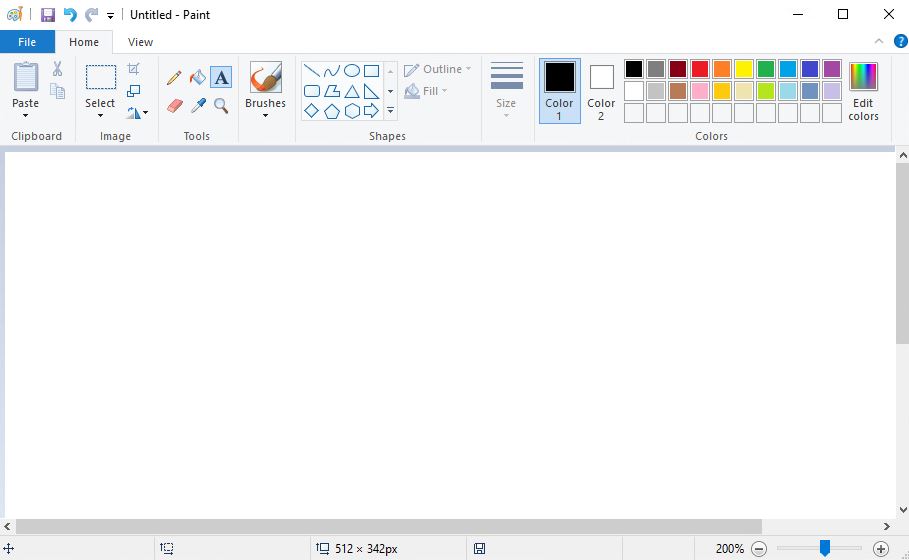
    1 – How to Rotate an Image in MS Paint

    Press Control-A or go to Select->Select All; to make sure you’re rotating all of the image, not just part of it.

    2 – Use the Rotate Button in MS Paint Toolbar to Turn an Image

    Choose to rotate right, rotate left, and just rotate multiple times until you get it the way you want.

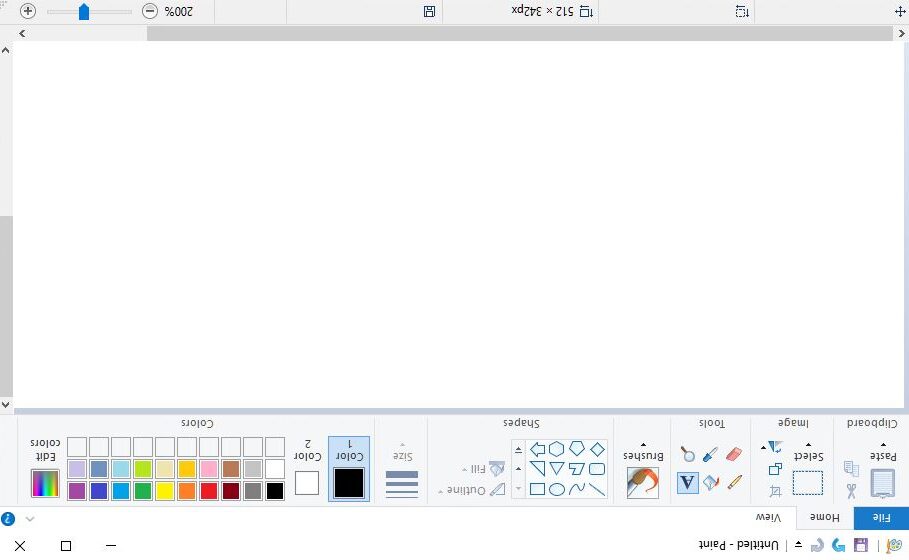
    3 – How to Flip an Image Like a Mirror in MS Paint

    Yes ‘flip’ is in the rotate menu. Go figure.

    4 – Save a Rotated Image in MS Paint Without Losing the Original

    Probably a good idea to not overwrite the original, save a new copy using File -> “Save As.”

    5 – How to Rotate Only Part of an Image in MS Paint

    Go back to step 1, but instead of selecting the whole image, just select part of it. Its that easy!

  • Crop an image in MS Paint

    Crop an image in MS Paint

    Cropping an image means only keeping the selected area. Use this when you want to “cut a bit out and keep it”.

    1 – Use the Select Tool in MS Paint to Choose the Area You Want to Keep

    Select the area you want to keep using the select tool. If you click the drop-down arrow just underneath it you can change the shape – you don’t HAVE to select a rectangle. If you choose an irregular shape, some of it will become a background colour to make it into a rectangle.

    2 – How to Invert Selection in MS Paint to Crop Out the Unwanted Part

    Select the part you don’t want, and right click to select ‘invert selection’ instead.

    3 – Crop an Image in MS Paint with the Crop Button or Keyboard Shortcut

    Select the crop button, or hit Control-Shift-X instead.

    4 – How to Save a Cropped Image in MS Paint Without Losing the Original

    To overwrite the original, click file->Save or press Control-S. To save as a new file, go to file->Save As.

    5 – Best File Format to Save Cropped Images in MS Paint (PNG, JPG, BMP, GIF)

    PNG → Best quality for screenshots, drawings, or images needing transparency.

    JPG → Smaller files, good for photos but loses some quality.

    BMP → Huge files, exact copy, rarely needed outside Windows.

    GIF → Tiny files, limited colors, good for simple graphics.

  • Change search engine on Kindle Fire Tablet

    Change search engine on Kindle Fire Tablet

    On a Kindle Fire tablet, the built-in Silk Browser defaults to Bing as the search engine, but you can change it. Here’s how:

    1 – Open the Silk Browser on Kindle Fire to Access Search Settings

    This is Amazon’s default web browser. It’s the one that comes pre-installed.

    2 – Where to Find the Search Engine Option in Silk Browser Settings

    Tap the menu icon. This is the three horizontal lines or dots in the upper-left corner (sometimes the upper-right corner).

    3 – What to Do If You Can’t Change the Search Engine on Older Kindle Fire Versions

    Select ‘Settings’, then ‘advanced’ (or ‘Search Engine’). The exact menu depends on your version. but its there and it allows you to select the new search engine. Choose Bing, Google, Yahoo or DuckDuckGo. If you want a search engine not already listed, you’ll need to skip to step 5.

    4 – How to Set Google (or Any Site) as the Homepage on Kindle Fire Silk Browser

    There is a search engine lock on some old Fire OS versions. If so, the workaround is to manually go to google.com (or your preferred search engine) and set it as your homepage.

    5 – Install Chrome, Firefox, or Opera on Kindle Fire to Use Any Search Engine

    Install Chrome, Firefox or Opera from the Amazon Appstore (or sideload from the google play store if you have it set up). Open that browser, go to settings, and choose any search engine you want!

  • Automatically reopen last session tabs in Chrome

    Automatically reopen last session tabs in Chrome

    How to Reopen Lost Tabs in Chrome
    We’ve all been there: you close the wrong tab, Chrome crashes, or you just can’t remember which device had that article you needed. Luckily, Chrome makes it easy to get your tabs back. Here’s how:

    1 – How to Reopen a Recently Closed Tab in Chrome with a Shortcut

    Hit Ctrl+Shift+T (Cmd+Shift+T on Mac) to reopen the last closed tab. Keep pressing it to step back through your closed tabs—or even restore your whole last session after a crash.

    2 – How to Use Chrome History to Recover Closed Tabs

    If that is not enough, then open your history with Ctrl+H. You’ll see everything from today (and before), searchable by site or title.

    3 – How to Reopen Tabs from Another Device in Chrome

    Other devices count too: Working on your phone earlier? Go to History → Tabs from other devices. Just make sure Chrome Sync is turned on.

    4 – How to Make Chrome Always Reopen Tabs on Startup

    Never want to lose your place again ? Go to Settings → On Startup → Continue where you left off. Now Chrome will reopen your tabs whenever it restarts.

    5 – How to Restore Tabs After a Chrome Crash

    If Chrome crashes, watch for the “Restore” button that sometimes pops up automatically. Nerd-level hack: Launch Chrome with --restore-last-session if you like command-line control.

  • Get ChatGPT to think longer

    Get ChatGPT to think longer

    1 – Try the ChatGPT “Thinking” mode

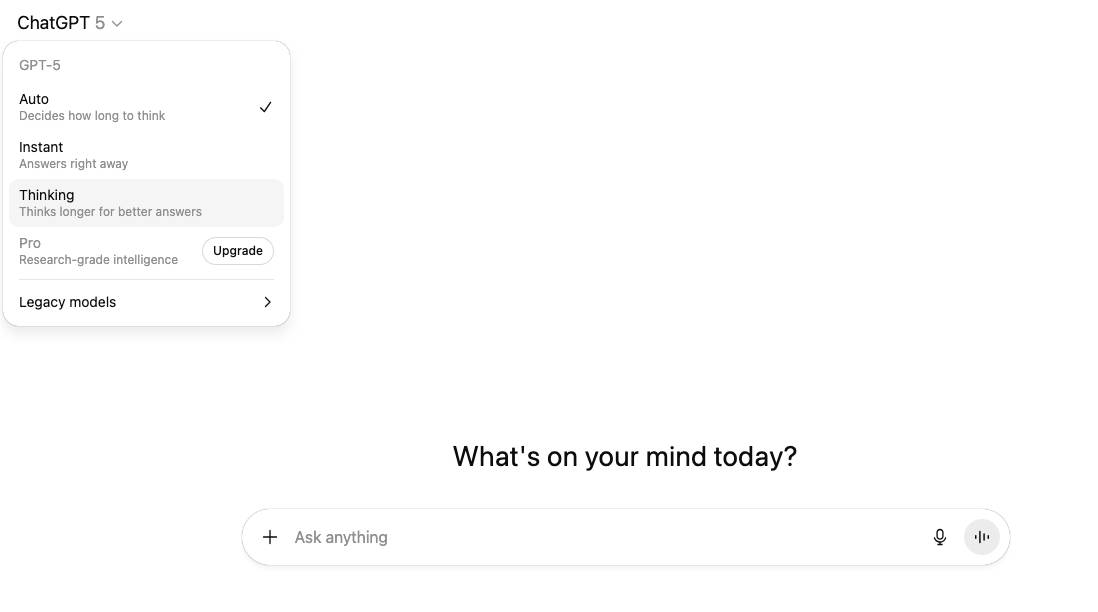
    If you’re using ChatGPT 5, click on the little arrow beside “ChatGPT 5” and select “Thinking” mode. Billed as “Thinks Longer for better answers” this is the simple way to get a better answer. But wait, there’s more. Much more.

    2 – Ask ChatGPT to think longer.

    If by “think longer” you mean give longer, more detailed reasoning/explanations, you can signal that directly. Use prompts like: “Explain your reasoning step by step,” “Think through this as carefully as possible,” or “Take your time and consider multiple angles.” This encourages the model to expand its internal reasoning into the output. You might want the model to explore multiple possibilities instead of jumping to one answer. Just use a prompt like: “Give me at least three possible explanations,” “List pros and cons,” or “Brainstorm alternatives.”

    3 – ChatGPT “Think Longer” Meta-prompt

    I want you to think in multiple passes before answering.

    1. First, brainstorm a wide set of possibilities (at least 5).
    2. Then, analyze and compare them, listing pros/cons or trade-offs.
    3. After that, draft a structured answer (organized, not polished yet).
    4. Next, revise and polish that draft into a final, clear, and well-written response.
    5. Finally, summarize the key takeaways at the end in 3 bullet points.

    Do not skip any step — show your thinking as you go.

    4 – Get ChatGPT to think longer using conversations

    Have you missed the point of a chat-interface? Try a back and forth conversation where you ask more questions and it drills down into the detail.

    Each turn builds more context, and by the time you ask for a summary, the model has essentially “thought out loud” across multiple passes.

    This is actually the most natural way to stretch out thinking, instead of trying to “hack it”.

    5 – Use “deep research” in ChatGPT

    To do this click on the “+” sign in the chat window and select deep research. This mode triggers slower, more exhaustive reasoning, often checking against external sources.

    If the other options aren’t working then this one is like forcing the model into “academic mode.” It will produce an exhaustive answer.

    Use this if you a wide-option question in a field you’re not familiar with. Often it will ask you some missing questions before embarking on several web searches and a thoughtful answer. Beware if you’re not on a paid plan, your use of this feature can be limited.

    If its images you want ChatGPT to “think longer” on, check out improve ChatGPT images instead

  • Find books with Amazon Advanced Book Search

    Find books with Amazon Advanced Book Search

    1 – Amazon “Advanced Search” – why?

    You need an advanced search probably because you have an unusual keyword. Looking for books on windows – the kind in buildings not the operating system? Looking for books by “Keto” not the diet?

    This is where advanced search comes in. Type “windows” and the subject “home” and you’ll get books on real windows. Type “keto” in the author field, and it won’t bury you in keto diet books.

    2 – First you need to get there “Advanced Search” on Amazon

    Try this first: if it works, then great: https://www.amazon.com/advanced-search/books

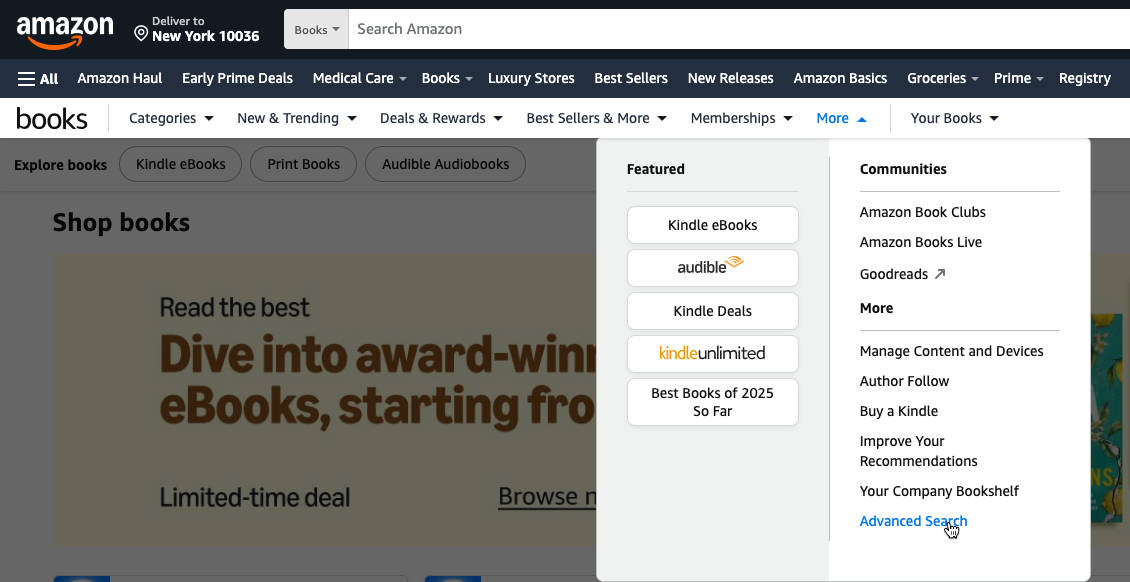
    Still having trouble? Try this: go to your amazon store, click on books, then click on “more” and “advanced search”. Where exactly this is will depend on your regional store.

    Still not working? Then search for the item you’re looking for in the normal way. Then in the results section click on “books”. Then you should see the “advanced search” option.

    3 – Amazon “Advanced Search” fields – use them!!

    Want it new? Probably. So “Condition” should be new.

    Want it in real life? Kindle? Audible? Choose under “format”.

    Don’t want books not actually published yet? Choose a publication date before today.

    Non-fiction? Selecting the right subject will help.

    Then careful use of the “keywords”, “author” and “title” field will get you what you need. If its very specific put it in quotes – e.g. “Windows 11” if you want books on that particular OS.

    4 – Proper use of “Advanced Search”

    If you’re not getting enough results you may have filtered far too hard. Try just searching by title, or author. Then filter it down gradually.

    5 – Advanced sort on Amazon Search

    If you were doing a normal search you may well want to sort by price. But lets be honest – you’re probably here because its something fairly unusual. Sorting by “bestselling” or “reviews” or “publication date” is probably a good idea.

    Happy searching!