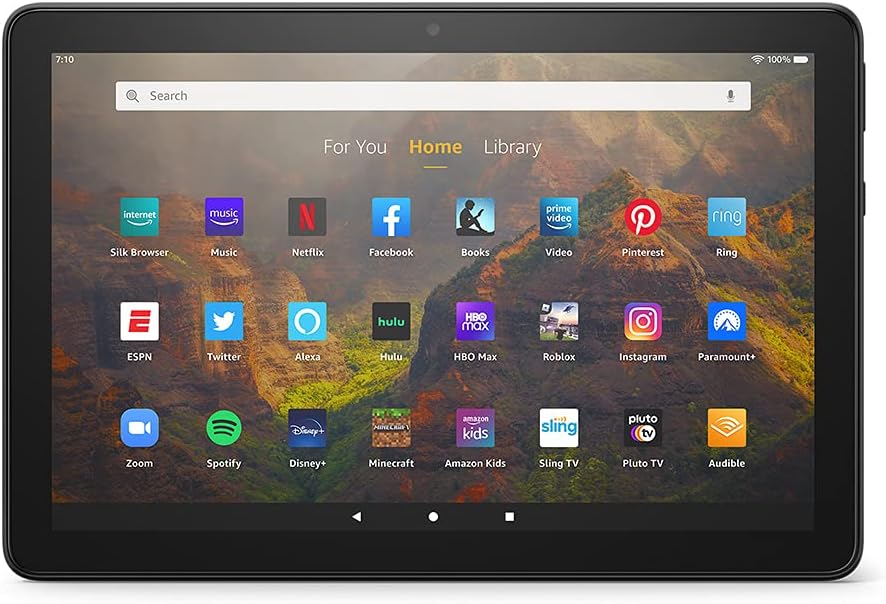
On a Kindle Fire tablet, the built-in Silk Browser defaults to Bing as the search engine, but you can change it. Here’s how:
1 – Open the Silk Browser on Kindle Fire to Access Search Settings
This is Amazon’s default web browser. It’s the one that comes pre-installed.
2 – Where to Find the Search Engine Option in Silk Browser Settings
Tap the menu icon. This is the three horizontal lines or dots in the upper-left corner (sometimes the upper-right corner).
3 – What to Do If You Can’t Change the Search Engine on Older Kindle Fire Versions
Select ‘Settings’, then ‘advanced’ (or ‘Search Engine’). The exact menu depends on your version. but its there and it allows you to select the new search engine. Choose Bing, Google, Yahoo or DuckDuckGo. If you want a search engine not already listed, you’ll need to skip to step 5.
4 – How to Set Google (or Any Site) as the Homepage on Kindle Fire Silk Browser
There is a search engine lock on some old Fire OS versions. If so, the workaround is to manually go to google.com (or your preferred search engine) and set it as your homepage.
5 – Install Chrome, Firefox, or Opera on Kindle Fire to Use Any Search Engine
Install Chrome, Firefox or Opera from the Amazon Appstore (or sideload from the google play store if you have it set up). Open that browser, go to settings, and choose any search engine you want!
Leave a Reply