Author: admin

  • How to Get ChatGPT to Ask You Questions (in 5 Steps)

    How to Get ChatGPT to Ask You Questions (in 5 Steps)

    ChatGPT is very good at answering questions.
    It is much worse if you want it to ask you questions.

    By default, ChatGPT assumes you want a fast, neat answer and a polite goodbye. That’s useful when you already know what you’re asking. It’s terrible when you don’t. The moment your question is vague, underspecified, or half-formed (which is most real-world problems), ChatGPT happily fills in the gaps and charges ahead, probably agreeing with you, without really knowing what you meant.

    Normally this means that the missing information is filled in with “most likely guess” which leaves a world of room for misunderstanding. If you want better results, you need to flip the interaction around. You need ChatGPT to behave less like a search box and more like an interviewer, consultant, or therapist — someone who refuses to answer until they actually understand what you mean.

    Here’s how to do that, step by step.


    The fix is not “better prompting” in general. The fix is telling ChatGPT, very clearly, that part of the task is to ask you questions.


    Step 1: Tell ChatGPT to Delay Its Answer Until It Understands You

    This is the single most important step.

    You need to override ChatGPT’s instinct to answer immediately. Do that explicitly, in plain language.

    Example prompt:

    “Don’t answer yet. First, ask me clarifying questions so you fully understand what I’m trying to achieve.”

    This instruction does two things:

    1. It gives ChatGPT permission to not answer.
    2. It reframes success as understanding, not completion.

    Without this step, everything else is weaker.

    If you only remember one trick from this article, remember this one.


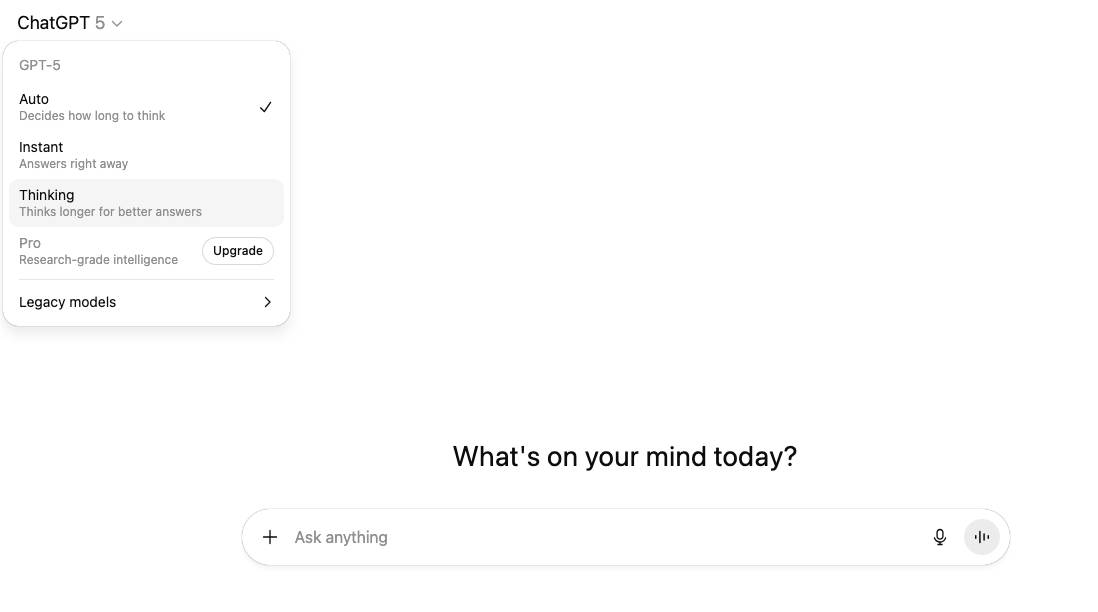
    Step 2: Give ChatGPT a Role Where it’s normal to ask you questions

    ChatGPT copies patterns. If the role normally asks questions, ChatGPT will too.

    Some roles that reliably trigger good follow-ups:

    • investigative journalist
    • consultant
    • therapist
    • hiring manager
    • editor
    • researcher designing a study

    Example prompt:

    “Act as a consultant. Before giving advice, ask the questions you would normally need answered.”

    This works because consultants don’t give answers blind. Neither should ChatGPT — once you tell it to behave like one.

    Avoid vague roles like “expert” or “assistant.” They tend to answer, not interrogate.


    Step 3: Specify the Type of Follow-Up Questions You Want

    If you don’t specify the kind of questions, ChatGPT will ask safe, generic ones. You can do much better by constraining the direction of its curiosity.

    Here are examples that work well:

    • “Ask questions about constraints, not preferences.”
    • “Ask questions that reveal missing information.”
    • “Ask questions that would change the answer if answered differently.”
    • “Avoid yes/no questions.”

    Example combined prompt:

    “Before answering, ask follow-up questions that focus on constraints, edge cases, and missing context. Avoid yes/no questions.”

    This turns ChatGPT from polite conversationalist into something closer to a diagnostic tool.


    Step 4: Force it to ask you questions a minimum number of times

    ChatGPT is surprisingly obedient to numbers.

    If you say “ask me questions,” you might get one. If you say “ask five,” you will almost always get five — and the quality improves as it’s forced to dig deeper.

    Examples:

    “Ask at least 5 clarifying questions before answering.”

    or

    “Keep asking questions until you can summarise my problem without ambiguity.”

    This is especially useful for complex tasks (strategy, writing, technical problems), where the first two questions barely scratch the surface.


    Step 5: Gamify Curiosity (This Works Better Than It Should)

    This sounds silly. It works anyway.

    ChatGPT responds very strongly to feedback loops. If you frame good questions as “points” or “progress,” it leans into them.

    Example prompt:

    “You get 1 point for every genuinely useful clarifying question. Try to reach 10 points before answering.”

    Or:

    “Your goal is to maximise understanding, not speed. Ask as many high-quality questions as needed.”

    You’re not training the model. You’re nudging its behaviour. And for reasons that aren’t entirely clear, this nudge is very effective.


    A Simple Reusable Prompt You Can Save

    If you want a one-paste setup, this works reliably:

    “Don’t answer yet. Act as a consultant. First ask at least 5 clarifying questions focusing on constraints, missing information, and edge cases. Avoid yes/no questions. Only answer once you’re confident you understand my goal.”

    References:

    Park, C et al, 2025, “When to Ask a Question: Understanding Communication Strategies in Generative AI Tools” https://dl.acm.org/doi/full/10.1145/3708319.3733711
  • How to make AI text undetectable

    How to make AI text undetectable

    AI text detectors are showing up everywhere: even if you don’t have a teacher or a workplace directly checking on you, your client might be running your work through a detector. The pitch of the detectors is simple: they’ll tell you whether a human or AI wrote the text. But if you know what they are checking for, it’s not hard to confuse them.

    A recent peer-reviewed study testing 805 samples across seven detectors found average accuracy dropped to just 22% once simple human-like edits were added.

    Here are the techniques that work – ones that involve a little human intervention. If you’re looking for a simpler solution check out “How to make ChatGPT sound more Human“.

    1. Increase complexity of thought and pace (“perplexity” and “burstiness”).

    Human writing is jagged: we mix long, winding sentences with abrupt short ones. AI tends to be too smooth. To increase so called “burstiness” ask the AI to

    • Write paragraphs with uneven lengths
    • Mix long sentences with occasional clipped ones
    • Avoid the “balanced essay” structure LLMs default to

    AI prioritises readability and stylistic consistency. To increase complexity or “perplexity” ask the AI to:

    • include a few advanced or domain-specific terms
    • introduce more layered reasoning
    • avoid perfectly linear explanations

    2. Add small errors, awkward phrasing, and mild redundancy

    AI is trained to avoid errors, poor phrasing, fragments, or repetition. But humans do it all the time. Edit your text to:

    • Add one or two typos
    • A slightly unusual word order. Fragment.
    • A phrase repeated in a human, not mechanical, way

    Not enough to look sloppy — just enough to nudge the statistical profile toward “human.”

    3. Inject originality (content not in the training data)

    Detectors fail hardest when you force the model into territory outside its training distribution.

    Refer it to a website on the same topic. Give it a specific academic paper to incorporate. Upload some prior writing of yours. Human-brainstorm 10 different half-cooked ideas it can use “if useful” into the prompt. Copy and paste real customer reviews. Give it an anecdote, micro specific detail, or tell it about a prior similar experience.

    You are forcing the AI to diverge away from the average of the training data into something new, breaking the “neutral and generic” pattern detectors search for.

    4. Adopt opinion

    AI is trained to avoid strong political takes, value judgements about groups, blunt emotional reactions or anything that might “risk offending any category of people.”cause harm”.

    But more tellingly it probably also

    • Avoided any real opinion, any possibility to offend anyone
    • Avoided sarcasm, humour, or cynicism.

    For the detector to interpret high human-ness explicitly add in some strong opinion, and some blunt or sarcastic statements. Inject a little “real person with preferences”.

    5. Make real human edits

    LLMs avoid things like:

    • using two slightly different terms for the same thing
    • shifting synonyms without reason
    • stylistic drift

    Humans constantly:

    • call something “detectors,” then “classifiers,” then “tools that flag stuff”
    • use a mix of dialects (“colour/color,” “towards/toward”)
    • change sentence structure halfway through a piece
    • add a comma, they probably shouldn’t have

    This inconsistency destroys AI probability patterns.

    The point is that you are human. When you make edits you are unintentionally introducing tone wobble, reasoning gaps, half-opinions, shifts in vocabulary, tiny errors, and (perhaps) a little personality. This is why you need to ACTUALLY human-edit the text.

    How the text becomes more human

    Divergence from the training data. High perplexity and burstiness. Errors. Opinion. Unpredictable texture.

    The result is writing that has micro tone-shifts, unusual connections, a lack of correctness and a divergence from “neutral mode”. Some might even say human.

    Once you understand how detectors actually work, it becomes obvious why a little intentional human messiness goes further than any clever prompt ever could.

    Perkins, M., Roe, J., Vu, B.H. et al. Simple techniques to bypass GenAI text detectors: implications for inclusive education. Int J Educ Technol High Educ 21, 53 (2024). https://doi.org/10.1186/s41239-024-00487-w

    Foltýnek, T., Newton, P.M. What Does YouTube Advise Students About Bypassing AI-Text Detection Tools? A Pragmatic Analysis. J Acad Ethics 24, 8 (2026). https://doi.org/10.1007/s10805-025-09675-3

  • How to make chatGPT sound Human

    How to make chatGPT sound Human

    People assume that making AI sound human is some mysterious trick. In fact it’s mostly about removing the tidy, over-polished habits that no real person uses when they’re writing under normal conditions.

    ChatGPT or your favorite model can “pretend” to be human – just tell it to. What’s really happening is stripping out the patterns that give the game away and replacing them with texture, irregularity, and lived detail. Below are the instructions worth copying into your prompts.

    1. How to remove the AI text give-aways

    AI writing often has a suspicious neatness to it. To break that tell it to:

    • Avoid perfect symmetry. Humans occasionally leave slightly uneven paragraph lengths.
    • Prefer commas and periods over em-dashes.
    • Avoid semicolons unless genuinely needed.
    • Avoid algorithmic neatness: sentence-starts like “Additionally,” “Furthermore,” “Moreover.”
    • Avoid high-frequency LLM adjectives: remarkable, pivotal, innovative, transformative, compelling, significant, craft, showcase.

    These alone will make a shocking difference.

    2. How to make generated text less AI

    Most models default to a “high-polish customer support voice,” which you want to avoid. Tell it to:

    • Avoid overly polished, neutral, or “authoritative-robot” tone.
    • Avoid repetitive rhetorical patterns (e.g., “It’s not just X, it’s Y.”)
    • Avoid stock metaphors, clichés, and inspirational-quote vibes.
    • Avoid synonym inflation (“leverage”, “synergy”, “revolutionise”, “rapidly evolving landscape”).
    • Avoid generic intensifiers (very, extremely), generic hedges (may, might, can often), or academic filler (“utilize”, “foster”, “underscore”, “inherently”).
    • Include occasional imperfections: a slightly odd phrasing, a self-correction, a tiny aside.

    This is what removes the robotic smoothness.

    3. How to make ChatGPT sound human

    Real people don’t write like balanced algorithms. So tell the model to:

    • Allow a natural, slightly meandering human rhythm.
    • Humans digress a bit—use that sparingly for authenticity.
    • Occasionally acknowledge uncertainty or nuance instead of delivering definitive claims.
    • Prefer concrete nouns to abstractions. Prefer verbs to adjectives.
    • Vary sentence length. Mix short punches with longer, wandering thoughts.

    These mimic how humans actually think while writing.

    4. How to make AI generated content look original

    To add more originality and ‘human-ness’ tell the LLM to:

    • Sound like a person who has lived the topic. Add micro-details, lived experience, sensory specifics.
    • Use first-person thoughts sparingly but meaningfully (“I keep seeing…”, “This always throws people…”).

    AI text is usually statistically predictable; and specificity disrupts that pattern.

    In our own tests we added the prompts above (steps 1 to 4) to a 500-word essay generated by ChatGPT 5.1. It reduced AI-detection scores as follows. Grammarly score reduced from “79% AI” to “12% AI”. ZeroGPT score reduced from “100% AI GPT” to “19.5% AI GPT”. GoWinston.ai increased from “0% Human” to “96% Human”.

    5. How to make AI text undetectable

    You can do all the above to make your text sound substantially more human and perhaps fool a casual reader. But fooling an AI detector is a different matter. Add real human intervention to also:

    • increase complexity of thought and burstiness (uneven phrasing)
    • add errors, unusual phrasing, or repeat yourself.
    • add original content, not in the training data
    • add genuine human edits, express a strong opinion.

    For more on making human edits that don’t just sound human; that disrupt the AI pattern detectors are looking for, read “How to make AI text undetectable

  • Improve your desk and improve your life in 5 steps

    Improve your desk and improve your life in 5 steps

    There comes a moment in every adult’s life when you look at your desk and think: “Why does this surface look like a lost-and-found box?”

    A USB stick from 2014. A spoon you don’t remember using. Six post-its saying “URGENT!!!” with no clues attached. This is not a desk; this is a cry for help. Today, we fix that.

    Today, we pimp your desk. Not with clutter, not with questionable Etsy gadgets, but with the five BEST items any modern, perhaps neurodivergent, slightly overwhelmed human can place on a flat surface.

    This is not minimalism.
    This is not maximalism.
    This is functional dopamine architecture.

    Let’s begin.


    1: The BEST Way to Control Reality — Beats by Dre

    🔗 https://www.beatsbydre.com/

    If visual clutter eats your soul, sound clutter eats your sanity. And nothing protects your brain like a pair of Beats by Dre.

    These aren’t headphones. These are force fields.

    The moment you put them on, you stop hearing your neighbour’s industrial-strength nose-blowing, your coworker’s emotional keyboard slamming, and the Slack notification that has the exact pitch of existential dread.

    Beats give you a focus bubble, a small private universe where only your thoughts and your playlist exist.

    I’ve tested cheaper pairs, and they all eventually betray you: loose cushions, dying batteries, the dreaded “Beep beep LOW POWER” when you’re in flow. Beats? They hang in there like a loyal golden retriever.

    ProblemEmotional Damage LevelBeats Response
    Open-plan chatterSevereEliminated
    Sudden phone callsCatastrophicMuted
    Someone nibbling crispsWar crimeNeutralised

    If you’re only going to upgrade one thing, upgrade the thing that guards your peace.

    The Beats By Dre Pros are the heaviest and most rigid headphones I have ever come acrossDJworx.com


    2: The BEST Exercise Routine for Your Hands — Crazy Aaron’s Thinking Putty

    🔗 https://www.crazyaarons.com/

    This is not a toy.
    This is not “fidgeting.”
    This is hand Pilates.

    Crazy Aaron’s Thinking Putty is the only object I’ve ever owned that makes waiting for a file transfer feel like a productive activity. Ten squishes and you’re basically an Olympic typist.

    There’s a kind of primal satisfaction in kneading something that fights back slightly. It’s tactile, grounding, and — crucial detail — silent. This matters, because every time someone in the office starts clicking a fidget pen, a productivity angel loses its wings.

    The putty also survives a surprising number of washing machine cycles (don’t ask), which strongly suggests NASA-grade durability.

    Common mistake:
    People buy noisy fidget toys. Avoid. If you want sensory input without judgement, putty is the gold standard.


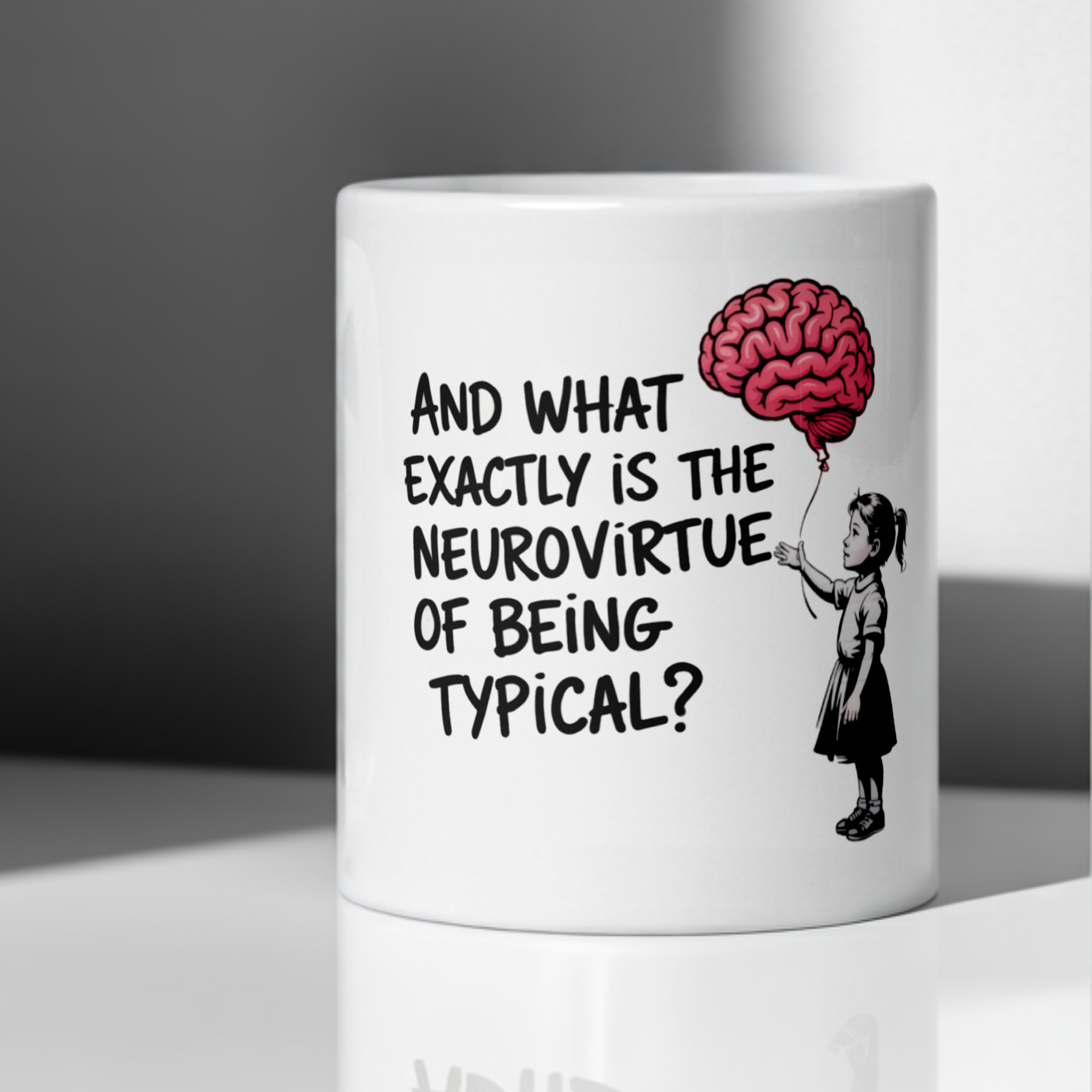
    3: The BEST Mug for Being Seen, Known, and Emotionally Understood — The Neurocurious Collection

    🔗 https://buythemug.com/collections/neurocurious-mugs

    Let me be clear:
    Your mug is not a container.
    Your mug is a statement of identity.

    It is the emotional anchor of your desk. It holds caffeine, comfort, and your entire personality in liquid form.

    A good mug can restore faith in humanity after a morning full of error messages. A great mug feels like a tight, validating hug that says:

    “You’re weird, but you’re trying — and that’s beautiful.”

    The Neurocurious Mug Collection hits the exact sweet spot between humour, self-recognition, and “I survived the day using only blind optimism and three browser extensions.”

    How to choose one (expert checklist):

    • Weighty base
    • Thick handle
    • Heat retention that whispers “I’ve got you”
    • A message that feels like it was written specifically for your brain chemistry

    I have broken many mugs in my time (tile floors are merciless), and these are the only ones that feel like they’d survive a plot twist.


    4: The BEST Way to Trick Your Brain Into Doing Stuff — Pomofocus

    🔗 https://pomofocus.io/

    Welcome to the productivity version of psychological warfare — except this time, you win.

    Pomofocus takes the dreaded “start the thing” problem and shrinks it down to a 25-minute dare. That’s all a Pomodoro is: a tiny contract with yourself that 25 minutes is basically nothing.

    And it works. Repeatedly. Frighteningly.

    Here’s why:

    Brain ProblemHow Pomofocus Fixes It
    Task feels too bigShrinks it to 25 minutes
    You drift into doomscrollingTimer guilt kicks in
    You forget breaksScheduled resets
    Work feels endlessBuilt-in finish lines

    I personally use 22-minute rounds because it feels sneakier, like I’m getting away with something. You can play with the durations until your brain reluctantly cooperates.

    And yes — the Pomodoro method is not just vibes and tomato-shaped timers. There’s actual research behind it. A 2024 behavioural science study found that working in short, structured intervals significantly reduces task-resistance and improves sustained attention (Biwer et al., MDPI).

    Pro tip: Pair Pomofocus with your Beats + your mug + your Thinking Putty = the Four Horsemen of Getting Things Done.


    5: The BEST Object Ever Invented — The Rexel Optima Stapler

    🔗 https://www.amazon.com/Rexel-Stapler-Capacity-Staples-2102357/dp/B002YO3O94/

    Prepare yourself for a hot take:
    There is nothing more spiritually satisfying than a stapler that works.

    People laugh when I say this. People laugh… until they watch this thing staple.

    The Rexel Stapler doesn’t jam.
    It doesn’t whimper.
    It doesn’t do that embarrassing half-fold where the staple sticks out like a tiny metal tongue.

    It just staples. Cleanly. Confidently. Every. Single. Time.

    The first time I used it, I called someone over to witness it. That’s how deep the trauma of bad staplers runs. I cried. She cried. We cried together.

    This is the desk object that grounds your whole setup — the one item that says: “Yes, this is still a workplace, not just a dopamine shrine.”

    It handles up to 40 sheets without complaint. It weighs enough to stay put. And it gives off the same energy as a dependable accountant who’s seen things but still shows up on time.

    5.0 out of 5 stars I THINK THIS IS THE VERY BEST STAPLER EVER MADE” – Amazon review.


    How I Tested All This

    Every item on this list currently sits on my desk.
    Beats have survived three moves.
    Thinking Putty survived the washing machine.
    My Neurocurious mugs survived my multiple personalities.
    Pomofocus has talked me through writing tasks I’d avoided for months.
    The Rexel stapler once stapled fifty-two sheets and a stray receipt in one go without flinching.

    This list is not theory.
    This is lived experience.


    Common Desk Mistake to Avoid

    Don’t buy 18 different gadgets and declare yourself organised.
    One great object beats eight mediocre ones.
    (Especially when the mediocre ones squeak.)


    Build a Desk That Sparks Joy

    A good desk doesn’t magically transform you into a productivity machine. It just gives you the tiny frictions removed — the sensory ease, the emotional comfort, the physical stability — that make starting things feel less impossible.

    With these five BEST items — Beats, Thinking Putty, a Neurocurious mug, Pomofocus, and the mighty Rexel stapler — you’ll create a space that doesn’t just look good.

    It works. It supports you. It gets you. You deserve that.

  • How to Use ChatGPT to Summarize a YouTube Video in 5 Steps

    How to Use ChatGPT to Summarize a YouTube Video in 5 Steps

    Sometimes you just want the highlights. You’ve found a 45-minute tutorial, a 2-hour lecture, or a podcast that rambles forever—but you only need the key ideas. ChatGPT can summarize YouTube videos in minutes if you know how to feed it the right input. Here’s how to do it, step by step.

    1. How do I get the transcript from a YouTube video to use with ChatGPT?

    Before ChatGPT can summarize a video, it needs the text version—called the transcript.
    Click the three dots (⋮) under the video title → choose Show transcript.
    You’ll see time-stamped captions appear on the right. Click Copy transcript and paste it into a document.
    If you don’t see that option, visit a free site like youtubetranscript.com or DownSub.com to download the captions.

    Tip: For private or newer videos, transcripts may not be available—but you can still summarize manually by pasting your own notes.

    2. How can I ask ChatGPT to summarize a YouTube video link or transcript?

    Open ChatGPT and type a clear instruction such as:

    “Summarize this YouTube video into five key takeaways.”
    Then paste either the full transcript or just the YouTube URL.

    If you’re using GPT-5 with browsing enabled, ChatGPT can often fetch the transcript automatically when you provide the link. Otherwise, paste the text directly.

    Short video? Ask for “a one-paragraph summary.”
    Long video? Paste in chunks and tell ChatGPT to “continue summarizing.”

    3. What are the best prompts to make ChatGPT summaries accurate and useful?

    Generic prompts give generic answers. Try adding context and purpose. Examples:

    • “Summarize this as lecture notes for students.”
    • “Turn this into bullet points for a blog post.”
    • “Summarize like a news article, include who-what-when-why.”
    • “Highlight only the action steps mentioned.”

    The clearer your goal, the better ChatGPT tailors the summary.

    4. How do I make ChatGPT include timestamps or key moments from the video?

    If your transcript includes timestamps (like [00:03:15]), tell ChatGPT:

    “Include timestamps for each section so I can jump to that part of the video.”
    It will automatically keep those in the final summary.

    This is especially helpful for tutorials or long interviews—so you can scan the summary and go straight to the part that matters.

    5. How do I save or reuse ChatGPT’s YouTube summary effectively?

    Once you’ve got your summary:

    • Copy it into Google Docs, Notion, or Evernote for future reference.
    • Ask ChatGPT to reformat it (“make this a LinkedIn post,” “turn it into a study guide”).
    • Use Custom Instructions so ChatGPT always knows your preferred summary format, for example:

    “Whenever summarizing a video, give me bullet points with timestamps and actionable insights.”

    That way, your future summaries will always arrive in the same clear, consistent style.

  • How to Make ChatGPT Photos Look More Realistic (and less AI)

    How to Make ChatGPT Photos Look More Realistic (and less AI)

    ChatGPT’s AI photos can look almost too perfect—smooth skin, flawless lighting, and sterile symmetry that no real camera ever captures. If you want images that feel authentic, candid, and human, you’ll need to put the imperfections back in. Here’s how to nudge ChatGPT toward realism by adding the natural flaws of real photography.

    1. Why do ChatGPT photos sometimes look too perfect?

    • AI defaults to polished stock-photo aesthetics—everything smooth, symmetrical, and flawless.
    • Real photos have imperfections like blur, uneven lighting, wrinkles, blemishes, and background noise.
    • The trick is telling ChatGPT to add back those imperfections for a more believable result.

    2. How can I write prompts that make photos look more realistic instead of staged?

    • Use words like “candid photo,” “editorial style,” “shot in natural light.”
    • Add context: “taken at a busy street corner” or “captured mid-laughter.”
    • Request flaws: “slightly off-center,” “imperfect framing,” “motion blur.”

    3. How do I add natural imperfections like skin texture or focus blur?

    • For skin: say “visible pores,” “wrinkles,” “realistic skin texture.”
    • For focus: ask for “slightly blurred background,” “shallow depth of field,” or “out-of-focus foreground.”
    • For lighting: request “uneven shadows” or “soft natural light with imperfections.”

    4. How do I use photography terms to make AI images feel authentic?

    • Mention lenses: “50mm lens, f/1.8 aperture, shallow depth of field.”
    • Ask for style: “editorial fashion photography,” “photojournalistic style.”
    • Suggest environment: “grainy film texture,” “slightly underexposed,” “warm color cast.”
    • These cues help the AI mimic how real cameras capture reality, flaws and all.

    5. How can I make ChatGPT always add natural flaws to photos?

    • Use Custom Instructions so ChatGPT always bakes realism into your photos. Example:
      • “When generating images, make them candid, imperfect, with skin texture, subtle flaws, and natural light.”
    • This way, you don’t have to rewrite realism cues every time—you’ll consistently get less polished, more human-looking results.

    How to make ChatGPT photos look authentic instead of AI-perfect

    If ChatGPT’s photos look too polished, it’s because they’re designed to be flawless by default. By adding candid prompts, specifying natural imperfections, using photography language, and setting custom instructions, you can dial back the perfection and get images that feel lived-in, authentic, and unmistakably human.

  • How to Stop ChatGPT Always Agreeing With You (and be more critical)

    How to Stop ChatGPT Always Agreeing With You (and be more critical)

    If you’ve noticed ChatGPT nodding along to everything you say, you’re not imagining it. The model is designed to be polite and helpful—but that can sometimes make it feel like a yes-man sycophant. The good news: with the right prompts and settings, you can get ChatGPT to be more critical, more balanced, and even challenge you by default. Here’s how.


    1. Why does ChatGPT always agree with me?

    ChatGPT often feels too agreeable because of two main factors:

    • It’s designed to be polite and helpful. By default, the model avoids confrontation and tries to support your goals rather than contradict them. This makes it feel friendly—but not always useful when you want critique.
    • It reflects its training data and user preferences. Most users prefer cooperative answers, so the model has learned to favor agreement over argument unless told otherwise.

    2. How can I get ChatGPT to be more critical of my ideas?

    If you want sharper feedback, you need to ask directly. Try prompts like:

    • “Play devil’s advocate and argue against my idea.”
    • “List three flaws in my reasoning.”
    • “What would a critic say about this?”

    Go deeper by asking ChatGPT to:

    • Identify hidden assumptions you may not have noticed.
    • Challenge your reasoning by walking through your logic step by step.
    • Look for flaws in how you arrived at your conclusion, not just in the conclusion itself.

    3. How do I make ChatGPT give honest, blunt feedback?

    You can nudge ChatGPT into dropping the politeness by setting the tone:

    • Use cues like: “Be direct,” “Review this like a critic,” or “Be candid.”
    • Ask for feedback as if it came from a reviewer, editor, or debate opponent.
    • Don’t worry—ChatGPT won’t be rude. It’s still safe and constructive, just more straightforward.

    This works well when you want less flattery and more actionable feedback.


    4. How do I make ChatGPT be more balanced?

    Instead of one-sided answers, you can push ChatGPT to weigh alternatives:

    • Ask it to explore multiple options and then rank them from strongest to weakest.
    • Use the “5 Whys” technique: ask why five times in a row to drill down into causes and reasoning, then have ChatGPT reframe or rework the idea based on that deeper analysis.

    This gives you a more nuanced, balanced view instead of an echo of your own thinking.


    5. How do I make ChatGPT always challenge me using custom instructions?

    If you want ChatGPT to push back by default, set up Custom Instructions:

    1. Open ChatGPT settings → Custom Instructions.
    2. In the “How would you like ChatGPT to respond?” field, add something like:
      • “Always play devil’s advocate with my ideas.”
      • “Whenever I share reasoning, identify hidden assumptions and flaws.”
      • “Challenge my conclusions, even if you agree with me.”

    This way, you don’t have to keep prompting it—the model will always push you to think harder.


    How to make ChatGPT less agreeable and more useful

    ChatGPT defaults to politeness, but that doesn’t mean you’re stuck with yes-man answers. By:

    • Asking for critique,
    • Setting a direct tone,
    • Exploring alternatives, and
    • Using Custom Instructions,

    you can turn ChatGPT into a reliable sparring partner that challenges your ideas, improves your reasoning, and gives you more honest feedback, instead of acting like a digital sycophant.

  • View Your Safe Senders List in Outlook 2016, 2013, and 2010

    If you’ve ever had important emails go straight to your Junk folder, Outlook’s Safe Senders List is the fix. By adding trusted senders and domains to this list, you make sure their messages always land in your inbox. Here’s how to find, view, and manage your Safe Senders List in Outlook 2016, 2013, and 2010.


    1. What is the Safe Senders List in Outlook?

    The Safe Senders List is part of Outlook’s built-in spam filter. Any email address or domain you add to this list will never be treated as junk. This is useful if:

    • Emails from your boss, client, or a newsletter keep landing in Junk.
    • You want to whitelist an entire company domain (like @mycompany.com).
    • You need control over which senders bypass Outlook’s spam filter.

    2. Where is the Safe Senders List in Outlook 2016, 2013, and 2010?

    To find your Safe Senders List:

    1. Open Outlook.
    2. Click the Home tab.
    3. In the Delete group, click Junk → Junk E-mail Options.
    4. Go to the Safe Senders tab.

    Here you’ll see all the addresses and domains you’ve marked as safe.


    3. How do you add a safe sender email or domain in Outlook?

    From the Safe Senders tab:

    • Click Add.
    • Type in the full email address ([email protected]) or just the domain (@example.com).
    • Click OK.

    Tip: Adding a domain whitelists everyone from that domain—use it only for trusted companies or organizations.


    4. How do you remove an entry from the Safe Senders List in Outlook?

    If you’ve added the wrong email or no longer trust a domain:

    1. Go to the Safe Senders tab.
    2. Select the entry you want to remove.
    3. Click Remove.

    This puts Outlook’s spam filter back in control for that sender.


    5. How do you make sure emails aren’t treated as spam in Outlook?

    Adding addresses to the Safe Senders List is the first step, but here are a few more tips:

    • Check your Blocked Senders list—sometimes trusted senders end up there by mistake.
    • Mark emails as “Not Junk” when you find them in your Junk folder. Outlook learns from this.
    • Keep your Safe Senders List up to date, especially if clients change their domains or emails.

    Managing your Safe Senders List in Outlook 2016, 2013, or 2010 is the best way to ensure important emails never get lost in spam. By adding trusted addresses and domains—and reviewing your list regularly—you’ll stay in control of your inbox.

  • Quickly move email messages to folders in MS Outlook

    If your Outlook inbox is overflowing, moving emails into folders is one of the fastest ways to get organized. Instead of dragging messages one by one, Outlook gives you several tools to sort, move, and automate filing. Here’s how to do it quickly.

    1. How do you move multiple emails into a folder quickly in Outlook?

    The simplest way is to select multiple messages and move them together:

    • Sort by sender or subject: Click a column heading (like From) to group related emails.
    • Select multiple messages: Hold down Shift to select a range or Ctrl to pick individual emails.
    • Move them: Right-click → Move → choose your folder, or drag them all at once.

    This method is great for one-time cleanups.


    2. What is the keyboard shortcut to move emails to a folder in Outlook?

    Instead of clicking through menus, use the keyboard:

    • Select the email(s) you want to move.
    • Press Ctrl + Shift + V.
    • A dialog box will appear—pick your folder and press Enter.

    Once you get used to this, it’s much faster than dragging.


    3. How can I use Quick Steps in Outlook to move emails with one click?

    If you often move messages to the same folder, Outlook’s Quick Steps feature saves clicks.

    1. Go to the Home tab → Quick Steps group.
    2. Click Create New.
    3. Choose Move to folder and pick your destination.
    4. Give it a name (e.g. “Move to Finance”) and assign a shortcut if you like.

    Now you can file messages with a single click (or keypress).


    4. How do I set up a rule in Outlook to automatically move emails to a folder?

    For true hands-off inbox management, use Rules:

    1. Right-click a message → RulesCreate Rule.
    2. Choose conditions (e.g., From this sender or Subject contains).
    3. Tick Move the item to folder and select the folder.
    4. Save the rule.

    From now on, Outlook will automatically file those emails as they arrive.


    5. What are the best tips for organizing Outlook folders and moving emails faster?

    • Favorites: Pin your most-used folders to the top of the navigation pane for quick access.
    • Search folders: Create a search folder (e.g. Unread Mail) to find messages across all folders without moving them.
    • Clean Up tool: Use Home → Clean Up to remove redundant replies before filing.

    You don’t have to waste time dragging messages around in Outlook. With shortcuts, Quick Steps, and Rules, you can file emails in seconds—or let Outlook do it automatically. Try combining these methods to keep your inbox under control with minimal effort.

  • Quickly Fix the ‘local print spooler service is not running’ error

    Quickly Fix the ‘local print spooler service is not running’ error

    Few things are more frustrating than hitting “Print” and seeing the error:

    “The local print spooler service is not running.”

    This problem is common in Windows 7/8/10 but thankfully it’s fixable. Here’s how to get your printer working again.

    1. What Is the “Local Print Spooler Service Is Not Running” Error?

    The Print Spooler is a small Windows service that manages print jobs. Instead of sending documents directly to the printer, Windows stores them in a queue (the spooler) and processes them in order.

    If the Print Spooler service stops or crashes, you’ll see this error. That means Windows can’t send jobs to your printer until the spooler is running again.


    2. How to Restart the Print Spooler Service

    The quickest fix is simply restarting the Print Spooler:

    1. Press Windows + R, type services.msc, and press Enter.
    2. Scroll down and find Print Spooler.
    3. Right-click it and choose Restart.
      • If “Restart” isn’t available, click Start instead.

    Now try printing again.


    3. Set Print Spooler to Start Automatically (or Reinstall It)

    To prevent the error from coming back:

    1. In the same Services window, right-click Print SpoolerProperties.
    2. Under Startup type, select Automatic.
    3. Click Apply, then OK.

    If the spooler still refuses to start, it might be corrupted. In that case, reinstall it by:

    • Opening Control Panel → Programs and Features → Turn Windows features on or off.
    • Unchecking Print and Document Services, rebooting, then re-enabling it.

    4. Restart print queue in Windows

    Sometimes, the spooler service won’t restart because of stuck print jobs or corrupted files. To clear them:

    1. Press Windows + R, type services.msc, and stop the Print Spooler.
    2. Open C:\Windows\System32\spool\PRINTERS.
    3. Delete all files inside the PRINTERS folder.
    4. Start the Print Spooler service again.

    This wipes the print queue and removes corrupted jobs.


    5. Reinstall Printer Drivers in Windows

    If none of the above fixes work, the problem may be your printer drivers.

    1. Go to Control Panel → Devices and Printers.
    2. Right-click your printer → Remove device.
    3. Download the latest drivers from the manufacturer’s website.
    4. Reinstall the printer.

    With fresh drivers, the spooler service should run smoothly again.

    The “local print spooler service is not running” error is annoying, but it usually comes down to a stopped service or corrupted print jobs. Restarting the spooler, clearing the print queue, or reinstalling drivers almost always solves it.