Category: amazon

  • How to change the Kindle name

    How to change the Kindle name

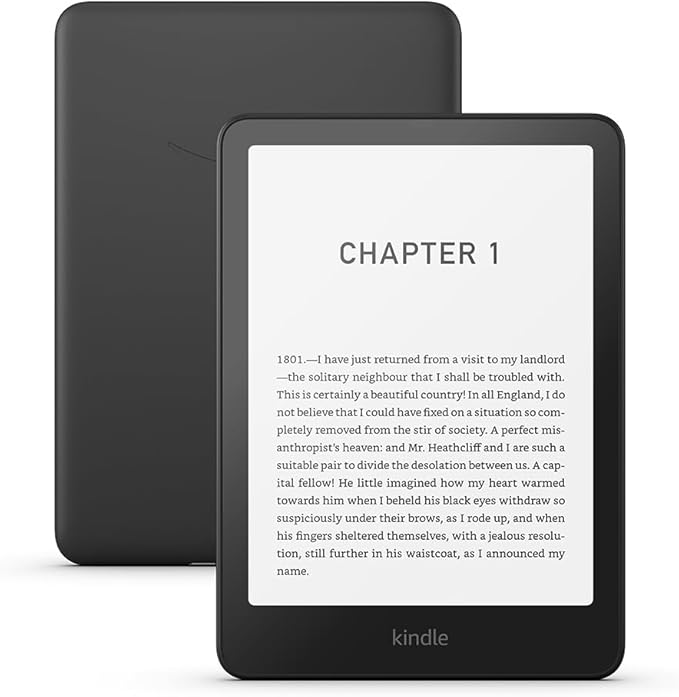
    Sometimes you desperately need to change your Kindle name. Amazon automatically gives a name to each Kindle, Echo, Fire Tablet or other device in your account but it can be annoying to know which is which.

    1 – Where to find your Kindle on Amazon.com

    Go to “Manage your Content and Devices” on Amazon.com. Click on Devices, and it will give you a list of all the devices associated with your account.

    2 – How to change an Amazon device name

    Click the (…) or Actions button next to the device. There should be an ‘edit’ option beside the device’s name. Type in the new name and click save. It may ask you for your password for verification.

    3 – How to change device name from Kindle

    If that seems like hard work, you can do it from the Kindle itself. Go to settings -> Your account -> Device Name, and enter the new Kindle name.

    4 – What to call my Kindle

    You might be here because “Sam’s 3rd Kindle” was a terrible name. You could use “Sam’s Red Kindle 2025” instead. But why not a favourite character or some inspiring words for the day. A good Kindle name is something memorable.

    5 – How to delete old Amazon devices.

    Now would be a good time to delete any old devices to prevent anyone else using your account or accessing your data.
  • How to Cancel or stop Amazon Subscribe & Save

    How to Cancel or stop Amazon Subscribe & Save

    Cancel the item altogether, skip the next delivery or reschedule. We’ll show you how.

    1 – How to Go to Amazon Subscribe & Save

    Go to Amazon.com, go to “Your Account” then go to “Your Subscribe & Save” items.

    This is sometimes found under “Accounts & Lists” then “Subscriptions”

    2 – How to Skip Delivery on Amazon Subscribe & Save

    Mouse-over the item and a ‘skip delivery’ option should appear. If it doesn’t appear, it’s not possible this month – the item could already be in processing.

    3 – Cancel an Amazon S&S item

    Mouse-over the item and click ‘edit subscription’ then cancel item. It might ask you for a reason but you can usually leave this blank.

    4 – Can you always cancel?

    Yes. You should always be able to cancel without fees or penalties (unless the item is already in processing/shipping). You should keep the discount on orders that have already processed, but you’ll lose the discount for future deliveries.

    5 – Amazon Subscribe & Save Five item discount

    The standard Subscribe & Save discount is 5% but it can go up to 15% if you have five or more items in the same monthly delivery. If cancelling this item brings you below five items, you can lose that higher discount – be careful!

  • Find books with Amazon Advanced Book Search

    Find books with Amazon Advanced Book Search

    1 – Amazon “Advanced Search” – why?

    You need an advanced search probably because you have an unusual keyword. Looking for books on windows – the kind in buildings not the operating system? Looking for books by “Keto” not the diet?

    This is where advanced search comes in. Type “windows” and the subject “home” and you’ll get books on real windows. Type “keto” in the author field, and it won’t bury you in keto diet books.

    2 – First you need to get there “Advanced Search” on Amazon

    Try this first: if it works, then great: https://www.amazon.com/advanced-search/books

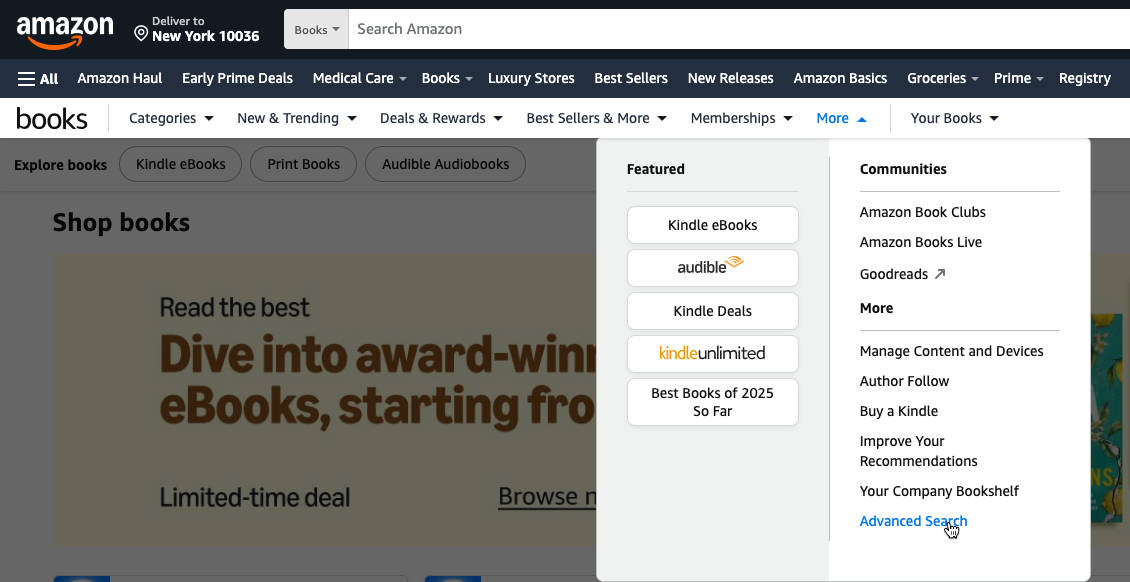
    Still having trouble? Try this: go to your amazon store, click on books, then click on “more” and “advanced search”. Where exactly this is will depend on your regional store.

    Still not working? Then search for the item you’re looking for in the normal way. Then in the results section click on “books”. Then you should see the “advanced search” option.

    3 – Amazon “Advanced Search” fields – use them!!

    Want it new? Probably. So “Condition” should be new.

    Want it in real life? Kindle? Audible? Choose under “format”.

    Don’t want books not actually published yet? Choose a publication date before today.

    Non-fiction? Selecting the right subject will help.

    Then careful use of the “keywords”, “author” and “title” field will get you what you need. If its very specific put it in quotes – e.g. “Windows 11” if you want books on that particular OS.

    4 – Proper use of “Advanced Search”

    If you’re not getting enough results you may have filtered far too hard. Try just searching by title, or author. Then filter it down gradually.

    5 – Advanced sort on Amazon Search

    If you were doing a normal search you may well want to sort by price. But lets be honest – you’re probably here because its something fairly unusual. Sorting by “bestselling” or “reviews” or “publication date” is probably a good idea.

    Happy searching!