Category: ms-paint

  • Save an image in black and white in MS-Paint

    Save an image in black and white in MS-Paint

    MS Paint can’t do it well, but here are some workarounds.

    1 – How to Convert an Image to Black and White in MS Paint

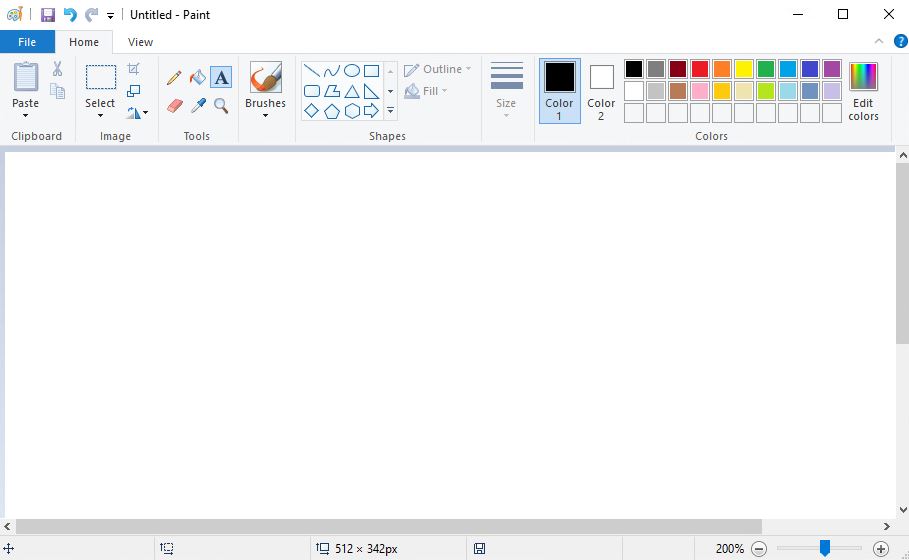
    Yes MS Paint can save in black and white, but it’s literally just black and white and no grey. Go to File -> Save As -> Monochrome Bitmap.

    2 – Why MS Paint Black and White Mode Looks Terrible (No Greyscale)

    But the problem is that it just literally converted the files to complete black or complete white. Often this looks terrible. Unfortunately there is no ‘greyscale’ option in MS-Paint.

    3 – Use the Windows Photos App to Convert Images to True Greyscale

    If you have Windows 10 or higher, this comes pre-installed. Open the image in the default Photos App and click the edit image (the pencil icon). Using the Filters or Adjustments tool, set the saturation to zero. Save a copy. This is true greyscale, and probably what you were looking for.

    4 – How to Make a Picture Black and White with Paint 3D

    This too is installed on Windows 10+. Go the effects tab in the top menu, and under filters you’ll find Black & White. The result is much better than MS-Paint.

    5 – Best Free Alternatives to MS Paint for Black and White or Greyscale Editing

    If you want to do this properly, with all the professional features, try installing GIMP, which is a free high quality photo manipulation tool https://www.gimp.org/
  • Rotate or flip an image horizontally or vertically in MS-Paint

    Rotate or flip an image horizontally or vertically in MS-Paint

    1 – How to Rotate an Image in MS Paint

    Press Control-A or go to Select->Select All; to make sure you’re rotating all of the image, not just part of it.

    2 – Use the Rotate Button in MS Paint Toolbar to Turn an Image

    Choose to rotate right, rotate left, and just rotate multiple times until you get it the way you want.

    3 – How to Flip an Image Like a Mirror in MS Paint

    Yes ‘flip’ is in the rotate menu. Go figure.

    4 – Save a Rotated Image in MS Paint Without Losing the Original

    Probably a good idea to not overwrite the original, save a new copy using File -> “Save As.”

    5 – How to Rotate Only Part of an Image in MS Paint

    Go back to step 1, but instead of selecting the whole image, just select part of it. Its that easy!

  • Crop an image in MS Paint

    Crop an image in MS Paint

    Cropping an image means only keeping the selected area. Use this when you want to “cut a bit out and keep it”.

    1 – Use the Select Tool in MS Paint to Choose the Area You Want to Keep

    Select the area you want to keep using the select tool. If you click the drop-down arrow just underneath it you can change the shape – you don’t HAVE to select a rectangle. If you choose an irregular shape, some of it will become a background colour to make it into a rectangle.

    2 – How to Invert Selection in MS Paint to Crop Out the Unwanted Part

    Select the part you don’t want, and right click to select ‘invert selection’ instead.

    3 – Crop an Image in MS Paint with the Crop Button or Keyboard Shortcut

    Select the crop button, or hit Control-Shift-X instead.

    4 – How to Save a Cropped Image in MS Paint Without Losing the Original

    To overwrite the original, click file->Save or press Control-S. To save as a new file, go to file->Save As.

    5 – Best File Format to Save Cropped Images in MS Paint (PNG, JPG, BMP, GIF)

    PNG → Best quality for screenshots, drawings, or images needing transparency.

    JPG → Smaller files, good for photos but loses some quality.

    BMP → Huge files, exact copy, rarely needed outside Windows.

    GIF → Tiny files, limited colors, good for simple graphics.