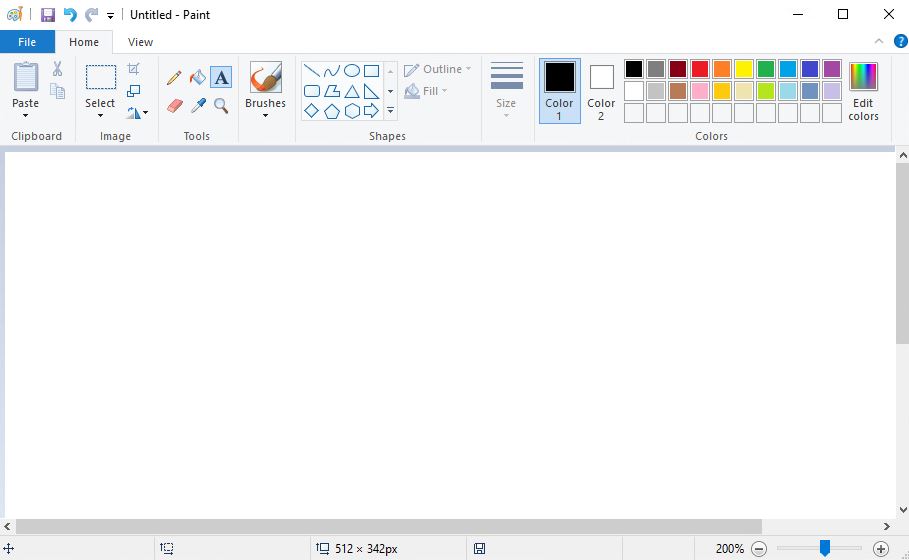
Cropping an image means only keeping the selected area. Use this when you want to “cut a bit out and keep it”.
1 – Use the Select Tool in MS Paint to Choose the Area You Want to Keep
Select the area you want to keep using the select tool. If you click the drop-down arrow just underneath it you can change the shape – you don’t HAVE to select a rectangle. If you choose an irregular shape, some of it will become a background colour to make it into a rectangle.
2 – How to Invert Selection in MS Paint to Crop Out the Unwanted Part
Select the part you don’t want, and right click to select ‘invert selection’ instead.
3 – Crop an Image in MS Paint with the Crop Button or Keyboard Shortcut
Select the crop button, or hit Control-Shift-X instead.
4 – How to Save a Cropped Image in MS Paint Without Losing the Original
To overwrite the original, click file->Save or press Control-S. To save as a new file, go to file->Save As.
5 – Best File Format to Save Cropped Images in MS Paint (PNG, JPG, BMP, GIF)
PNG → Best quality for screenshots, drawings, or images needing transparency.
JPG → Smaller files, good for photos but loses some quality.
BMP → Huge files, exact copy, rarely needed outside Windows.
GIF → Tiny files, limited colors, good for simple graphics.
Leave a Reply