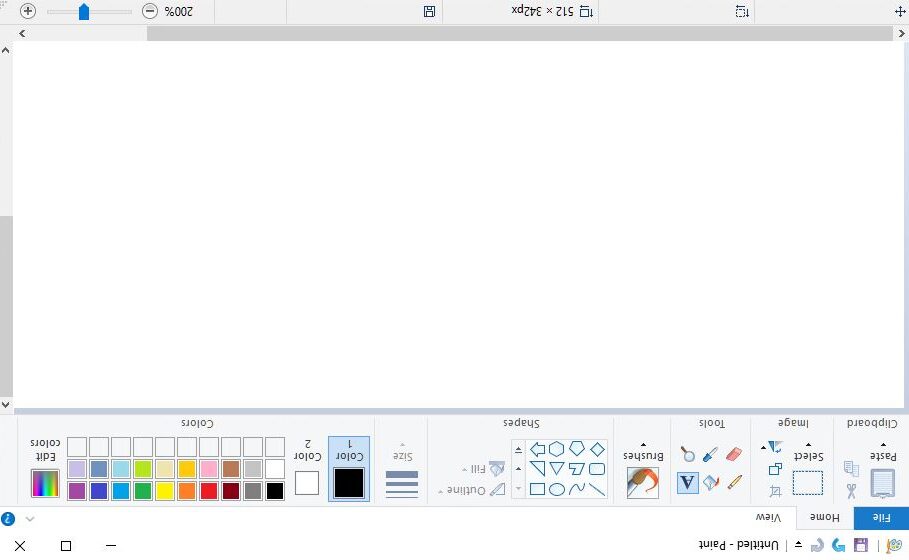
1 – How to Rotate an Image in MS Paint
Press Control-A or go to Select->Select All; to make sure you’re rotating all of the image, not just part of it.
2 – Use the Rotate Button in MS Paint Toolbar to Turn an Image
Choose to rotate right, rotate left, and just rotate multiple times until you get it the way you want.
3 – How to Flip an Image Like a Mirror in MS Paint
Yes ‘flip’ is in the rotate menu. Go figure.
4 – Save a Rotated Image in MS Paint Without Losing the Original
Probably a good idea to not overwrite the original, save a new copy using File -> “Save As.”
5 – How to Rotate Only Part of an Image in MS Paint
Go back to step 1, but instead of selecting the whole image, just select part of it. Its that easy!
Leave a Reply