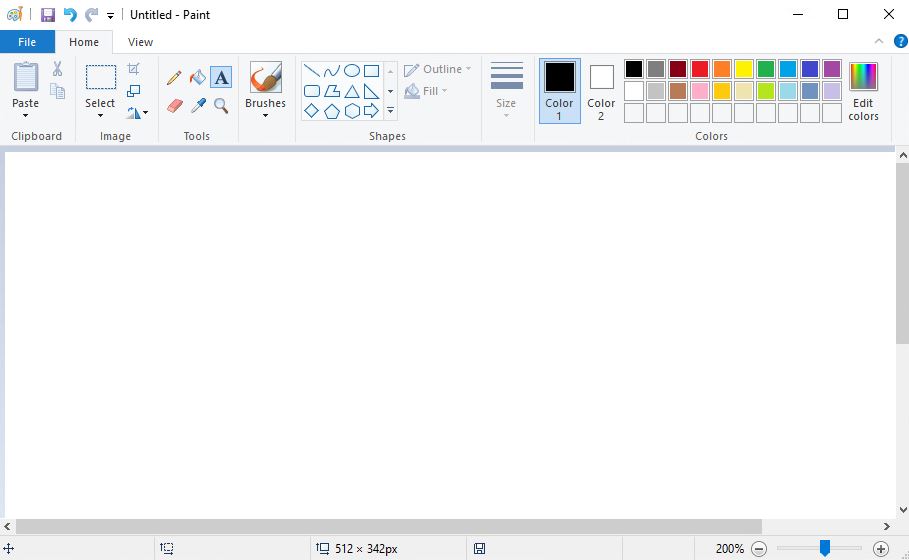
MS Paint can’t do it well, but here are some workarounds.
1 – How to Convert an Image to Black and White in MS Paint
Yes MS Paint can save in black and white, but it’s literally just black and white and no grey. Go to File -> Save As -> Monochrome Bitmap.
2 – Why MS Paint Black and White Mode Looks Terrible (No Greyscale)
But the problem is that it just literally converted the files to complete black or complete white. Often this looks terrible. Unfortunately there is no ‘greyscale’ option in MS-Paint.
3 – Use the Windows Photos App to Convert Images to True Greyscale
If you have Windows 10 or higher, this comes pre-installed. Open the image in the default Photos App and click the edit image (the pencil icon). Using the Filters or Adjustments tool, set the saturation to zero. Save a copy. This is true greyscale, and probably what you were looking for.
4 – How to Make a Picture Black and White with Paint 3D
This too is installed on Windows 10+. Go the effects tab in the top menu, and under filters you’ll find Black & White. The result is much better than MS-Paint.
5 – Best Free Alternatives to MS Paint for Black and White or Greyscale Editing
If you want to do this properly, with all the professional features, try installing GIMP, which is a free high quality photo manipulation tool https://www.gimp.org/
Leave a Reply