Author: admin

  • How to easily open RAR files in Windows 7/8/10

    How to easily open RAR files in Windows 7/8/10

    You’ve probably seen a file ending in .rar and wondered why Windows won’t open it. That’s because RAR is a compressed archive format (like ZIP), but unlike ZIP, it’s not natively supported by Windows. Don’t worry—opening RAR files is easy once you know which tool to use.

    1 – Old Windows Versions and RAR Files

    Windows has long supported .zip archives without any extra software. You can double-click a ZIP file and browse the contents like a folder.

    But RAR files are different. They were developed using a proprietary compression algorithm, and Windows 7, 8, and even 10 don’t include built-in support. That means you’ll need a third-party app to extract them.

    2 – The Best App to Open RAR Files on Windows 7 (and Later)

    One of the easiest (and free) tools to use is 7-Zip.

    • Website: https://www.7-zip.org/
    • Cost: Free (open source)
    • Why use it: Lightweight, secure, supports RAR, ZIP, and dozens of other archive formats.

    3 – How to Extract a RAR Archive in Windows 10

    1. Download and install 7-Zip
    2. Right-click the .rar file.
    3. In the menu, hover over 7-Zip.
    4. Choose one of the following:
      • Extract Here → unpacks files into the same folder.
      • Extract to foldername → creates a new folder with the extracted files.
      • Open archive → lets you browse inside the RAR before extracting.

    That’s it—your files are now ready to use.

    4 – Using RAR in Old Versions of Windows

    If you’re still on Windows 7 or 8, you might wonder if it’s worth installing extra software just for RAR files. Honestly, unless you need to open a RAR someone sent you, it’s better to stick with ZIP.

    Why?

    • Windows already supports ZIP out of the box.
    • Most tools let you compress into ZIP as easily as RAR.
    • Sharing ZIPs avoids the “What do I need to open this?” problem for friends or coworkers.

    RAR is fine for extracting files, but for creating and sharing, ZIP is the universal choice.

    5 – What About WinRAR? (And Why to Avoid It)

    You might hear about WinRAR, since it’s the software originally designed for RAR archives. It works well—but here’s why many people skip it:

    • It’s not free. WinRAR is paid software, though it lets you keep using it after the trial (with constant nags).
    • 7-Zip does the same job without cost or limitations.
    • For simple extracting, WinRAR is overkill.

    Unless you have a very specific reason to use it, 7-Zip is the better option for most Windows users.


  • How to Copy Fonts from One PC to Another

    How to Copy Fonts from One PC to Another

    Got a font you love on one computer and want to use it on another? Whether you’re moving to a new machine or just keeping your design setup consistent, copying fonts in Windows 7, 8, or 10 is simple—but there are a few things you need to know first.

    1 – Where Are Fonts Stored in Windows 7/8/10?

    All installed fonts are stored in a single folder:

    C:\Windows\Fonts

    This is Windows’ central font directory. Any file here is available system-wide. To open it quickly, press Windows + R, type fonts, and hit Enter.

    2 – Find a Font File in Windows

    If you know the name of the font you want:

    1. Open the Fonts folder (C:\Windows\Fonts).
    2. Scroll or search by font name.
    3. Right-click the font → Open file location.

    This shows you the actual .ttf (TrueType) or .otf (OpenType) file on your system.

    3 – How to Copy a Font to a New PC

    You have two options depending on how many fonts you want to move:

    • Copy a single font
      1. Find the font file (see above).
      2. Copy it to a USB stick or cloud folder.
      3. On the new PC, double-click the file → click Install.
    • Copy all fonts at once
      1. Go to C:\Windows\Fonts.
      2. Select all fonts (Ctrl + A) and copy them.
      3. Paste them into a folder on your USB stick or cloud drive.
      4. On the new PC, copy them back into C:\Windows\Fonts (or select them all → right-click → Install).

    ⚠️ Note: Copying every font can be overkill. Many are system fonts that already exist on the new PC. Usually, it’s easier to just copy the few you actually need.

    4 – App Not Picking Up the New Font?

    Sometimes your new font won’t show up right away:

    • Restart the app (Word, Photoshop, etc.).
    • If that fails, restart Windows.
    • Check for duplicates—two fonts with the same name can confuse Windows.

    5 – Are You Allowed to Copy Fonts? (Font Licensing)

    Here’s the tricky part: not every font can legally be copied.

    • Free fonts (like Google Fonts or Font Squirrel) are usually fine to move between personal devices.
    • Commercial fonts (like those bought from Adobe, Monotype, etc.) often have strict licenses—usually tied to one user or one device.

    If you’re moving to a new PC, check the font’s license terms. Sometimes you can install it on multiple devices you personally use. In a workplace, you may need extra licenses.

    👉 Best practice: If you’re decommissioning the old computer, remove the font from it after installing on the new one to stay compliant.

    Copying fonts between Windows PCs is easy—just grab the .ttf or .otf file and install it on the new machine. But always remember to respect licensing rules. Fonts are software too, and moving them without permission can create legal issues.

  • Add a great new font in Windows 7/8/10

    Add a great new font in Windows 7/8/10

    Adding a font in Windows? We know. Sometimes the default fonts just don’t cut it—whether you want a stylish script for invitations, a quirky font for a school project, or something professional for design work. Luckily, Windows makes it pretty straightforward to install and use new fonts. Here’s everything you need to know.

    1 – Where are fonts Stored in Windows 7/8/10?

    All the system fonts are stored in a single folder:

    C:\Windows\Fonts

    This is the central location where Windows looks for installed fonts. Once a font is placed here, it becomes available to all applications on your computer (Word, Photoshop, browsers, etc.).

    Tip: You can open this folder quickly by pressing Windows + R, typing fonts, and hitting Enter.

    2 – What Font Types does Windows support?

    Windows supports several font formats, but the most common ones you’ll see are:

    • TrueType (.ttf) – The standard, works in almost every app.
    • OpenType (.otf) – More advanced, supports extra features like ligatures; also widely supported.
    • PostScript (.pfb + .pfm) – Older Adobe format, not as common these days.

    For most users, sticking to .ttf or .otf fonts is easiest and safest.

    3 – How to install a new font in Windows 7/8/10

    Method 1: Double-Click

    1. Download and unzip the font file if it’s in a ZIP folder.
    2. Double-click the .ttf or .otf file.
    3. In the preview window that opens, click Install.

    Method 2: Copy to Fonts Folder

    1. Download the font.
    2. Right-click the file and choose Copy.
    3. Navigate to C:\Windows\Fonts.
    4. Right-click inside the folder and choose Paste.

    That’s it—the font should now be available system-wide.

    4 – App not picking up the new font?

    If you’ve just installed a font but can’t find it in Word, Photoshop, or another program, try these fixes:

    • Restart the app – Most programs only load fonts when they start.
    • Restart Windows – Some apps (especially older ones) need a reboot before recognizing new fonts.
    • Check for duplicates – If two fonts have the same internal name, Windows may ignore one.
    • Make sure you installed for all users – If you only installed the font for your user account, another account on the same PC won’t see it.

    5 – Where to get new fonts for Windows

    You don’t have to settle for the defaults—there are thousands of free and paid fonts online. Some popular sources include:

    • Google Fonts – Free, open-source fonts, easy to browse.
    • DaFont – Huge collection of free fonts (check license terms).
    • Font Squirrel – Hand-picked free fonts with commercial licenses.
    • Adobe Fonts – Premium fonts, included with Creative Cloud.

    Always check licensing if you’re using fonts for commercial projects.

    Adding fonts in Windows 7, 8, or 10 is easy—once you know where they’re stored and how to install them. Whether you’re designing, writing, or just customizing your desktop, the right font can make all the difference.

  • Five ways to fix your Netflix recommendations

    Five ways to fix your Netflix recommendations

    Does it feel like Netflix used to know you, but now your home screen is full of random shows you’d never watch? You’re not alone. Over time, shared profiles, autoplay, and old viewing history can confuse the algorithm. The good news: you can reset your Netflix algorithm, clean up your history, and fix bad Netflix suggestions so your recommendations feel fresh again.

    In this guide, we’ll cover five practical ways to improve Netflix recommendations, from hiding junk viewing history to rating shows with thumbs-up and thumbs-down. Do these steps once, and Netflix will relearn your real taste.


    1. How do I hide unwanted shows from my Netflix viewing history?

    Sometimes your recommendations go wrong because someone else used your profile—or maybe you regret binging a random reality show at 2am. Luckily, Netflix lets you hide titles from your history so they don’t influence your recommendations.

    1. Go to Netflix.com in a browser (not the app).
    2. Click your profile icon → AccountViewing Activity.
    3. Find the show or movie you want to hide and click Hide from Viewing History.

    Bonus: When you hide an episode, Netflix asks if you want to hide the whole series—choose yes if you never want it messing with your recommendations again.


    2. How can I stop Netflix recommendations from being ruined by other people?

    Sharing a profile is a recipe for algorithm chaos. If one person watches Downton Abbey and another watches SWAT, Netflix tries to find middle ground—and your suggestions become nonsense.

    The fix: give everyone their own profile.

    • You can have up to five profiles per account.
    • Add a PIN lock so kids, roommates, or freeloaders can’t wander into your carefully tuned profile.
    • After creating new profiles, go back to step 1 and clean up your viewing history.

    This way, your recommendations stay true to your taste.


    3. How do I remove freeloaders or unknown devices from my Netflix account?

    When scrolling through viewing history, do you see shows you don’t recognize? It might be a forgotten TV at an Airbnb, an old roommate, or even your ex still signed in. That’s enough to throw off your recommendations.

    Here’s how to kick them off:

    1. Go to Account → Manage Access and Devices.
    2. Look for devices you don’t recognize.
    3. Sign them out individually—or hit Sign out of all devices for a full reset.
    4. Change your password before signing back in on your own devices.

    After this, go back to Viewing Activity and hide any shows they polluted your list with.


    4. How do I improve Netflix recommendations by rating shows with thumbs up or down?

    Netflix recommendations improve dramatically when you give feedback. Most people skip the thumbs, but they’re your best tool to “teach” the algorithm what you like.

    • Go to Account → Viewing Activity → Ratings.
    • Review the shows you’ve rated thumbs-up or thumbs-down. Remove or adjust any that don’t reflect your taste.
    • After watching something, don’t ignore the thumbs. Even better: give a double thumbs-up to shows you love.

    Investing a few minutes here pays off with smarter, more accurate suggestions.


    5. How can I stop Netflix autoplay from messing up my recommendations?

    Autoplay can generate false signals—like when previews start playing or the next episode rolls automatically. Netflix might think you’re interested, even if you’re not.

    To fix this:

    1. Go to Account → Profiles → Playback settings.
    2. Uncheck Autoplay previews and Autoplay next episode.
    3. Watch only what you choose while retraining your recommendations.

    You can always re-enable autoplay later, once Netflix has learned your real preferences again.


    How to Reset Netflix Recommendations the Right Way

    To reset your Netflix algorithm, you need to:

    • Clean up your viewing history.
    • Separate profiles and lock them down.
    • Boot out freeloaders and unknown devices.
    • Rate shows decisively with thumbs-up/down.
    • Turn off autoplay while retraining the algorithm.

    Do this once, and your Netflix home screen will feel like yours again—showing you the movies and series you actually want to watch.

  • Delete or change a saved password on Chrome

    Delete or change a saved password on Chrome

    Chrome is great at remembering passwords, but what a pain when it keeps suggesting the wrong one.

    1 – How to Open the Chrome Password Manager on Desktop and Mobile

    On Desktop the easiest way is to copy and paste this into the address bar:

    chrome://password-manager

    On Android or iOS tap the three dots then “Password Manager”

    2 – How to Delete a Saved Password in Chrome

    It will ask you for the DEVICE password (your normal computer/device login password). That can be confusing – you don’t need to know the website password to delete it – just the DEVICE password. Then click the three dots beside the saved entry and click remove/delete/trash-bin – it depends on your device.

    3 – How to Edit a Saved Password in Chrome

    Click the eye and enter your device password as before, but click the pencil icon (or the word ‘edit’) to change the password to the correct one.

    4 – How to Remove a Site from the “Never Saved” List in Chrome

    Did you tell Chrome to NOT remember the password and now you want it to?

    Scroll down to the section “Never Saved” (sometimes under ‘Settings’ within password manager).

    Find the site in the list.

    Click the X next to it to remove it.

    Next time you log in on that site, Chrome will prompt you to save the password.

    5 – How to Manually Add a New Password to Chrome Password Manager

    If for some reason Chrome is saving the one you want, you can always add it manually. Follow step 1; then click ‘add’.

  • Merge Windows on Chrome; or move the Tab

    Merge Windows on Chrome; or move the Tab

    Too many tabs? Too many windows? Too many devices? You’re not alone, find out how to move a tab from one Window to another, or one device to another, or move several at once.

    1 – How to Move a Tab to Another Window in Chrome

    Best for a quick fix on Desktop – just move the two Chrome windows so you see both of them at the same time, and drag a tab from one window to the other.

    2 – How to Send a Chrome Tab to Another Device

    Select the tab you want to move to your other device, then click on the three dots at the top right of the screen. Then “Cast, Save and Share” -> “Send to your devices”. Just choose the other device to send it to (you’ll need to be logged in on both).

    3 – How to Move Multiple Tabs to Another Device in Chrome

    Click on the first tab, and hold down shift and click on another tab. You now have multiple tabs selected. To move them to another device follow step 2 above.

    4 – How to Move Several Tabs into a Different Chrome Window

    Click on the first tab, and hold down shift and click on another tab. You now have multiple tabs selected. To move them to another window on the same device right-click on the tab and select “move tabs to another window”.

    5 – How to Merge All Chrome Windows Into One


    Click on the first tab, hold down shift and click on the last tab. Right-click on the tab and select “move tabs to another window”. They’ve all gone!

  • Change the Keyboard Backlight Timer on a HP Laptop

    Change the Keyboard Backlight Timer on a HP Laptop

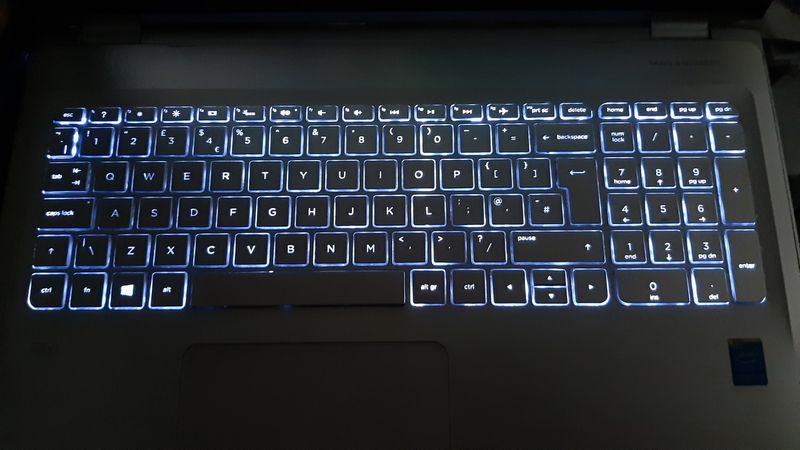
    The backlight timer can be set to an infuriatingly short delay. Increasing it to a few minutes is sensible, just don’t change it to always-on.

    1 – How to Quickly Adjust Keyboard Backlight Brightness on HP Laptops

    Depending on your laptop version, F4, F5, F11 or the spacebar with the backlight icon can toggle brightness levels, but it won’t change it on a more permanent basis. Look for an icon that looks like a light on one of these keys.

    2 – How to Change the HP Keyboard Backlight Timeout in BIOS

    Power it on and immediately press Esc (or F10 on some models) to open the Startup Menu.

    Choose BIOS Setup (F10).

    Look for a section like Advanced → Built-in Device Options.

    Find Keyboard Backlight Timeout (sometimes “Action Keys Mode”) and adjust to several minutes.

    Save changes and exit.

    3 – Why You Should Not Set the Keyboard Backlight to Always On

    After all, there is a reason there’s a timer. It will drain your battery. And the only difference between 30 mins and ‘Always’ in practice is a dead battery.

    4 – How to Use HP Command Center or HP Omen Gaming Hub to Control Backlight

    If the BIOS changes worked, then great. Otherwise if your laptop came with HP Command Center or Gaming Hub, open it.

    Go to Lighting or Keyboard settings.

    Adjust timeout duration or set it to always on while plugged in.

    5 – What to Do If Your HP Laptop Doesn’t Have a Backlight Timeout Option

    Some HP laptops ship with a fixed timeout you cannot change. As a last resort, make sure your BIOS and drivers are up to date using HP Support Assistant. With luck, an update might unlock new backlight options.

  • How to change the Kindle name

    How to change the Kindle name

    Sometimes you desperately need to change your Kindle name. Amazon automatically gives a name to each Kindle, Echo, Fire Tablet or other device in your account but it can be annoying to know which is which.

    1 – Where to find your Kindle on Amazon.com

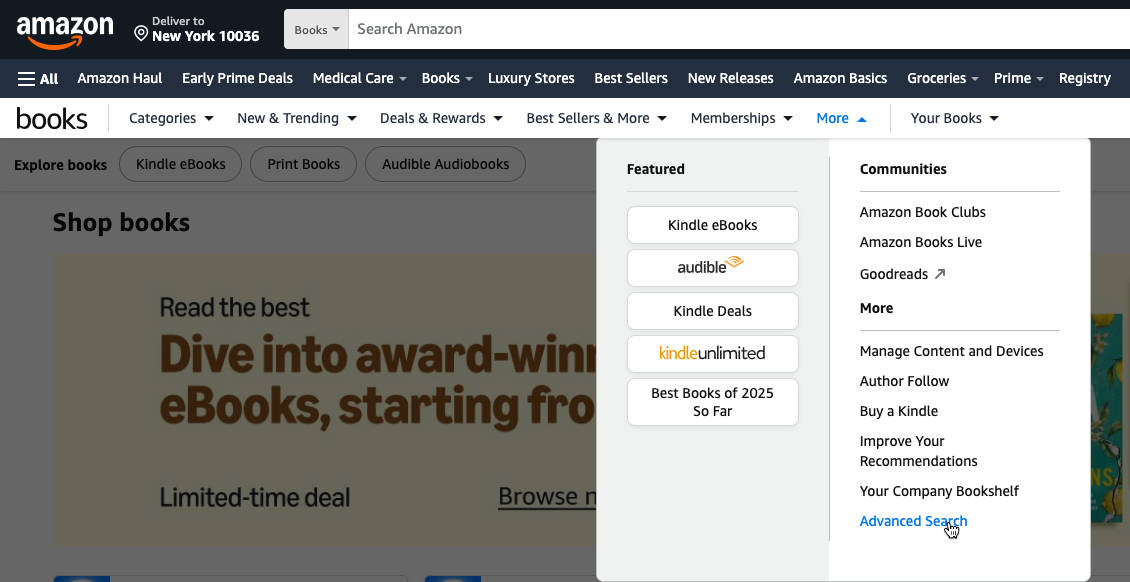
    Go to “Manage your Content and Devices” on Amazon.com. Click on Devices, and it will give you a list of all the devices associated with your account.

    2 – How to change an Amazon device name

    Click the (…) or Actions button next to the device. There should be an ‘edit’ option beside the device’s name. Type in the new name and click save. It may ask you for your password for verification.

    3 – How to change device name from Kindle

    If that seems like hard work, you can do it from the Kindle itself. Go to settings -> Your account -> Device Name, and enter the new Kindle name.

    4 – What to call my Kindle

    You might be here because “Sam’s 3rd Kindle” was a terrible name. You could use “Sam’s Red Kindle 2025” instead. But why not a favourite character or some inspiring words for the day. A good Kindle name is something memorable.

    5 – How to delete old Amazon devices.

    Now would be a good time to delete any old devices to prevent anyone else using your account or accessing your data.

  • How to Cancel or stop Amazon Subscribe & Save

    How to Cancel or stop Amazon Subscribe & Save

    Cancel the item altogether, skip the next delivery or reschedule. We’ll show you how.

    1 – How to Go to Amazon Subscribe & Save

    Go to Amazon.com, go to “Your Account” then go to “Your Subscribe & Save” items.

    This is sometimes found under “Accounts & Lists” then “Subscriptions”

    2 – How to Skip Delivery on Amazon Subscribe & Save

    Mouse-over the item and a ‘skip delivery’ option should appear. If it doesn’t appear, it’s not possible this month – the item could already be in processing.

    3 – Cancel an Amazon S&S item

    Mouse-over the item and click ‘edit subscription’ then cancel item. It might ask you for a reason but you can usually leave this blank.

    4 – Can you always cancel?

    Yes. You should always be able to cancel without fees or penalties (unless the item is already in processing/shipping). You should keep the discount on orders that have already processed, but you’ll lose the discount for future deliveries.

    5 – Amazon Subscribe & Save Five item discount

    The standard Subscribe & Save discount is 5% but it can go up to 15% if you have five or more items in the same monthly delivery. If cancelling this item brings you below five items, you can lose that higher discount – be careful!

  • Disable or bypass pop-up blocker in Chrome

    Disable or bypass pop-up blocker in Chrome

    By default Chrome rightly focuses on stopping spammy windows and browser safety. But on some websites you NEED to see that popup – it might be a login or payment window.

    1 – How to Allow a Single Pop-Up in Google Chrome

    1. On your computer, open Chrome.
    2. Go to a page where pop-ups are blocked.
    3. In the address bar, click Pop-up blocked Pop-up blocked.
    4. Click the link for the pop-up you want to check.

    2 – How to Always Allow Pop-Ups from a Specific Website in Chrome

    Go the same place, but click “Always allow pop-ups and redirects from [site]

    3 – How to Turn Off the Pop-Up Blocker in Chrome Completely

    1. Find the Customize and control Google Chrome menu (three vertical dots) located in the upper-right corner. 
    2. Select Settings -> Privacy and security -> Site Settings -> Content -> Pop-up and Redirects
    3. Under “Default behavior,” choose the option to “Sites can send pop-ups and use redirects”

    4 – Shortcut Tricks to Bypass Chrome’s Pop-Up Blocker

    If its a link that SHOULD be working but you suspect its blocked, try holding down the Shift key, or the Control key, while clicking normally on the link. This sometimes bypasses the block.

    5 – What to Do If Chrome Still Blocks Pop-Ups (Try Another Browser)

    Sometimes you have to use another browser. For example one government website I use simply doesn’t work in Chrome, however silly that is. Try “the other browser” on your device.