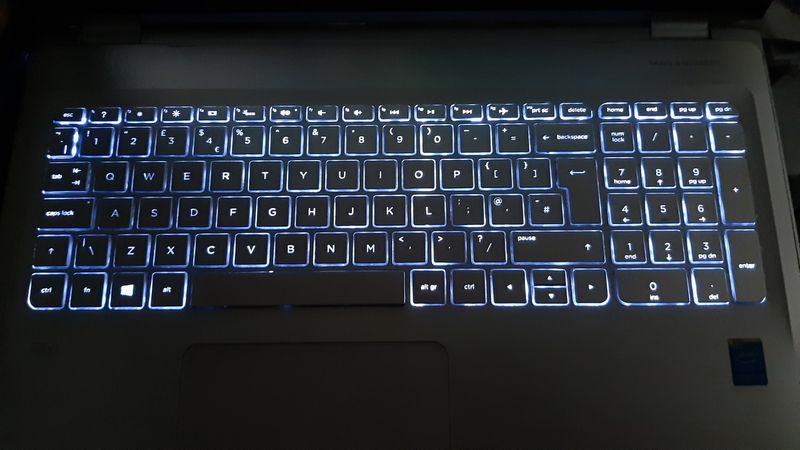
The backlight timer can be set to an infuriatingly short delay. Increasing it to a few minutes is sensible, just don’t change it to always-on.
1 – How to Quickly Adjust Keyboard Backlight Brightness on HP Laptops
Depending on your laptop version, F4, F5, F11 or the spacebar with the backlight icon can toggle brightness levels, but it won’t change it on a more permanent basis. Look for an icon that looks like a light on one of these keys.
2 – How to Change the HP Keyboard Backlight Timeout in BIOS
Power it on and immediately press Esc (or F10 on some models) to open the Startup Menu.
Choose BIOS Setup (F10).
Look for a section like Advanced → Built-in Device Options.
Find Keyboard Backlight Timeout (sometimes “Action Keys Mode”) and adjust to several minutes.
Save changes and exit.
3 – Why You Should Not Set the Keyboard Backlight to Always On
After all, there is a reason there’s a timer. It will drain your battery. And the only difference between 30 mins and ‘Always’ in practice is a dead battery.
4 – How to Use HP Command Center or HP Omen Gaming Hub to Control Backlight
If the BIOS changes worked, then great. Otherwise if your laptop came with HP Command Center or Gaming Hub, open it.
Go to Lighting or Keyboard settings.
Adjust timeout duration or set it to always on while plugged in.
5 – What to Do If Your HP Laptop Doesn’t Have a Backlight Timeout Option
Some HP laptops ship with a fixed timeout you cannot change. As a last resort, make sure your BIOS and drivers are up to date using HP Support Assistant. With luck, an update might unlock new backlight options.
Leave a Reply